















 |
 |
Presentation
Morse-it is an easy-to-use application that lets you translate, interpret, type, learn, convert Morse code, and more.
You can run it on your iPhone or iPad and it is compatible with VoiceOver.
Note: by getting this app, you'll have access to several useful and fun features related to Morse code (these are the features explained in this description).
In addition, you can unlock advanced features in the app if you need them: learning and social features. More information at the end of this description.
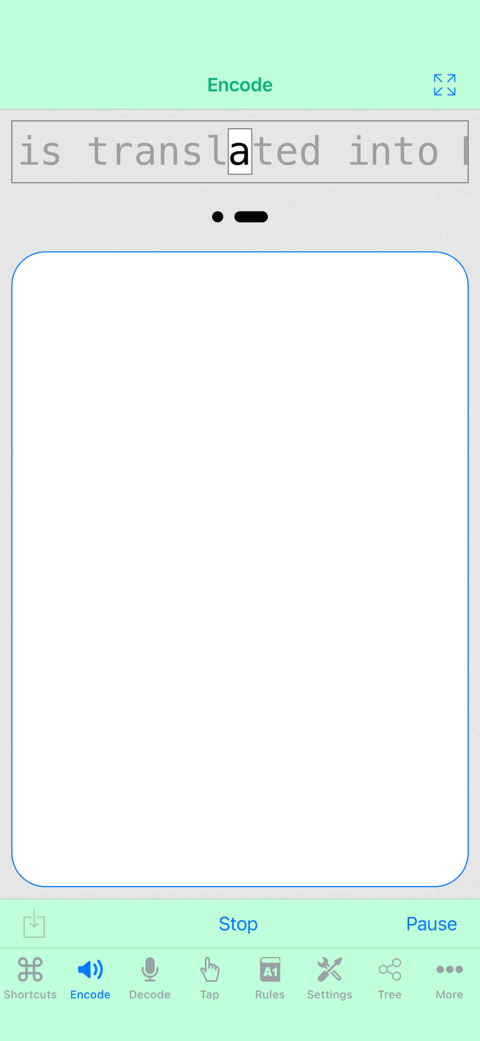
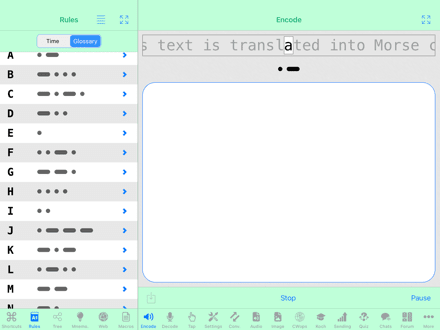
Type any text and it will be automatically encoded into a full-screen flashing effect of the corresponding Morse code.
The flashlight of your device is also used.
Your SOS messages will be seen quite far away!
Some sound will also be played accordingly. In detailed mode, the encoded text will scroll during the decoding process.
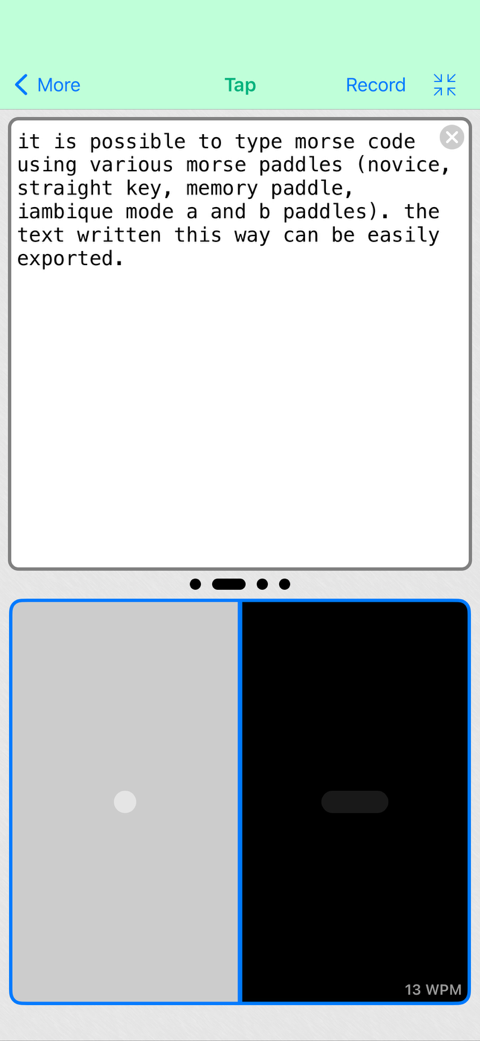
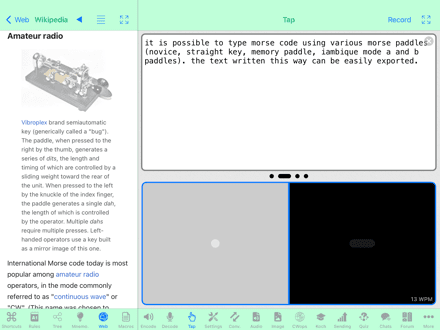
Tap some Morse code on the screen and the program will translate it into some text.
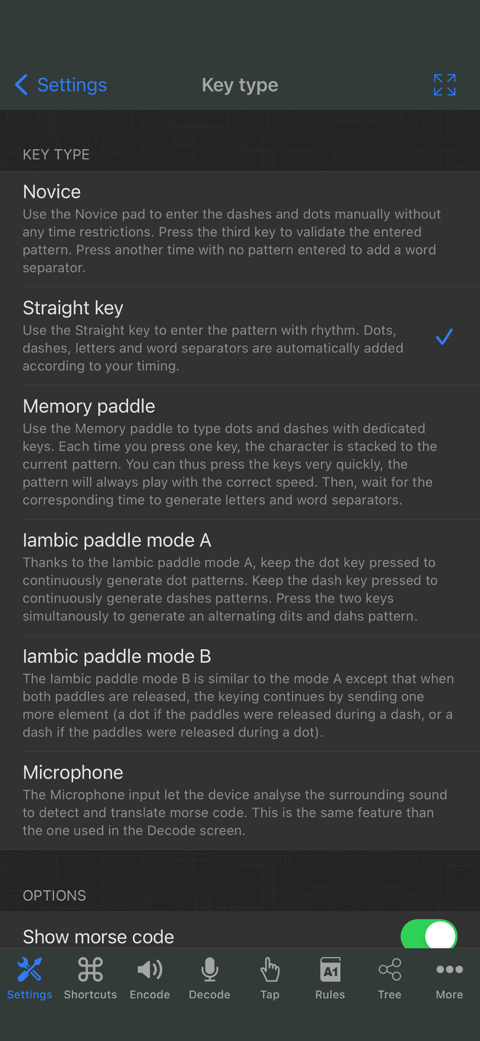
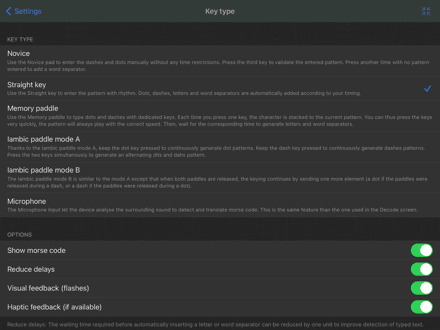
Several input types are supported: Novice, Straight Key, Memory Paddle, Iambic Paddle (A and B), Microphone. Left and right handed modes are supported.
Test and improve your skills: are you good enough to be understood?
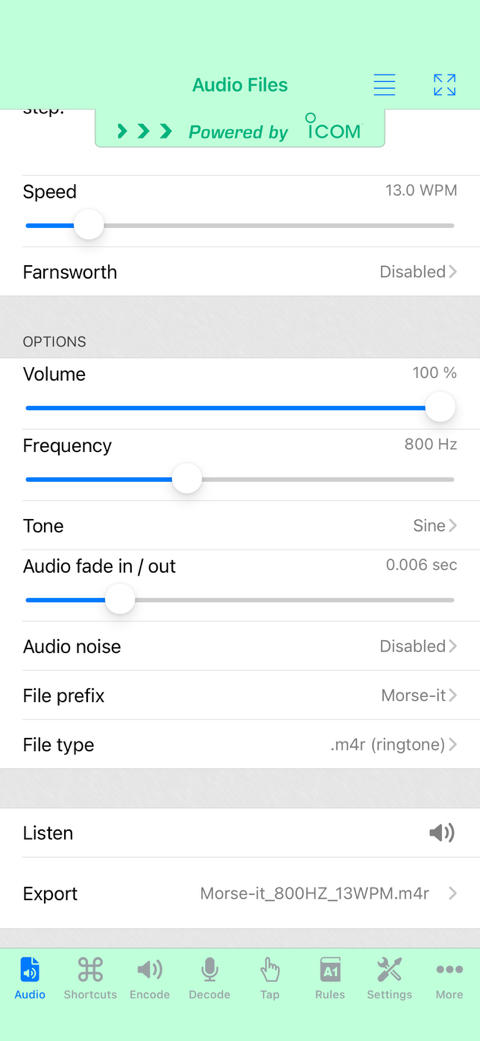
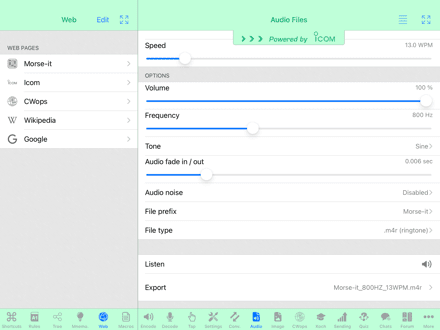
Create Morse code audio files from a given text (or variables).
Use these files as you like: listen to them to train your decoding skills or use them as ringtones for your mobile phone.
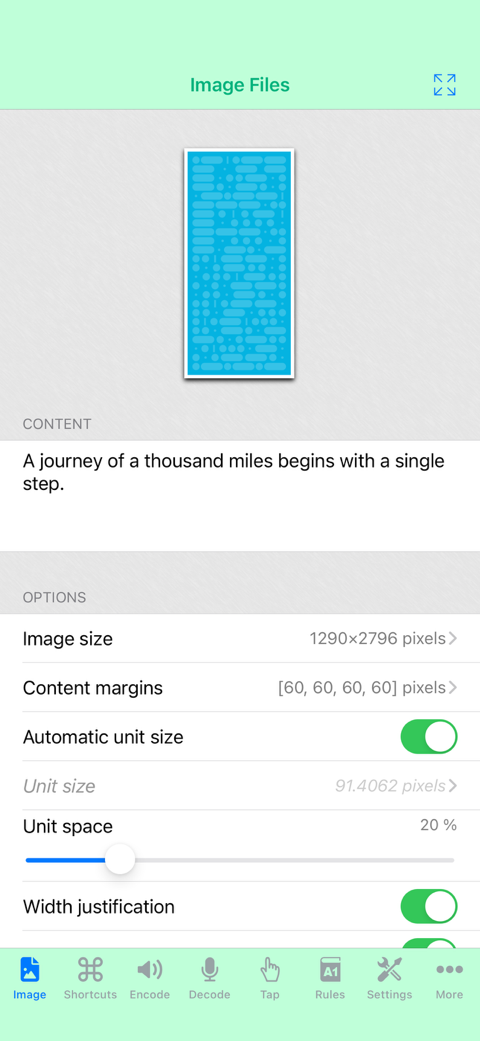
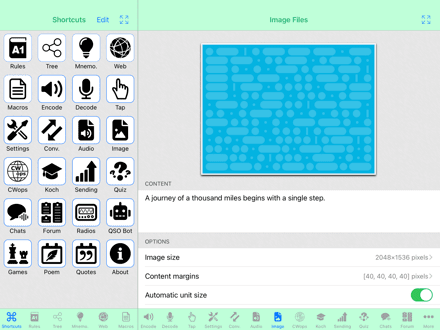
Create beautiful abstract wallpapers for your device (or posters to be printed) by customizing the display of the dashes and dots of the sentence you like.
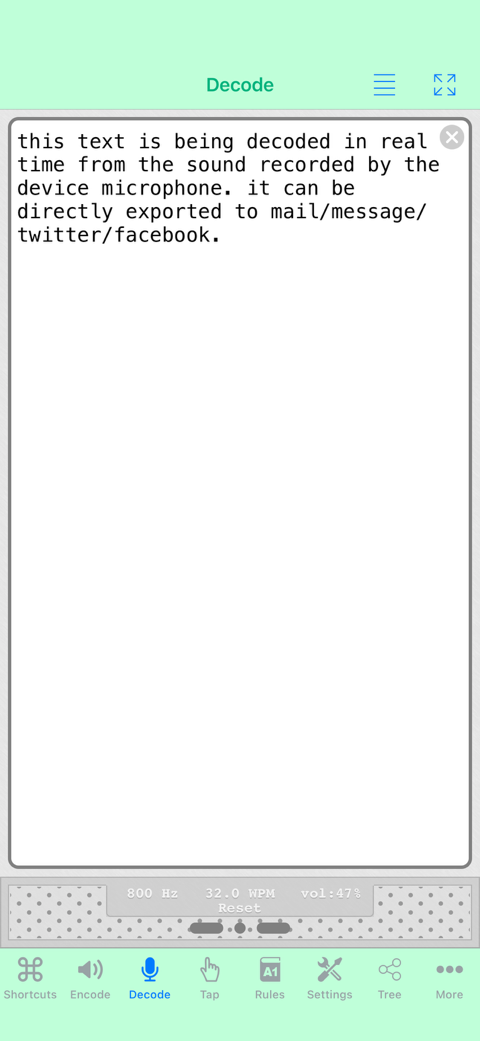
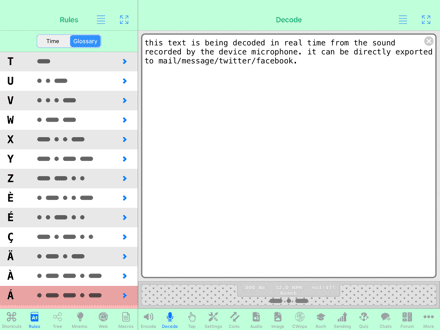
Exclusive feature that allows you to decode in real time the Morse code recorded by the microphone into text (note: the sound must be quite clear/loud and without much noise).
Some automatic calibration is performed, allowing adaptation to speed, tone and volume changes.
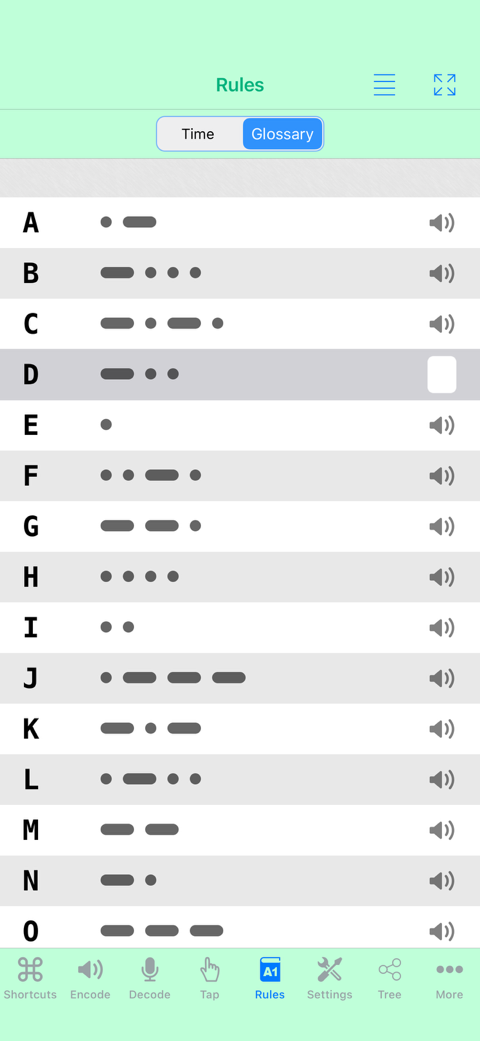
The full Morse alphabet (including prosigns) can also be viewed and the associated Morse code can be played.
Tapped and decoded text can be edited and exported to clipboard, in-app email and SMS.
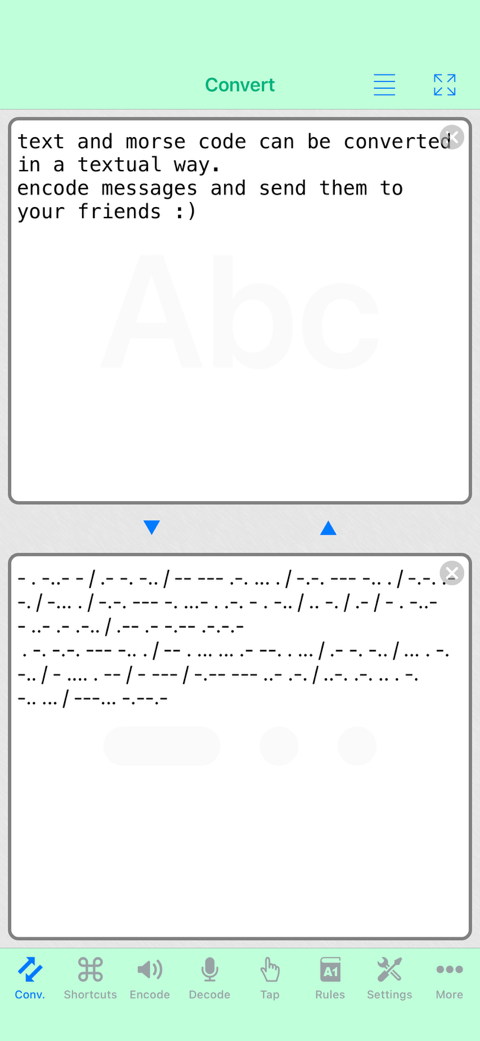
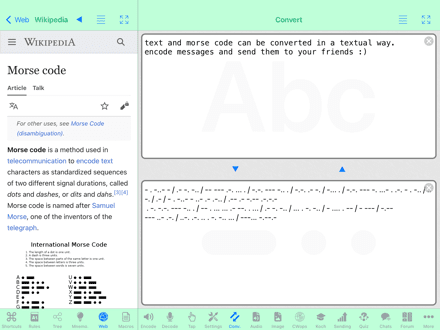
A special screen allows textual conversion of Morse code and text. Exchange encrypted messages with your friends.
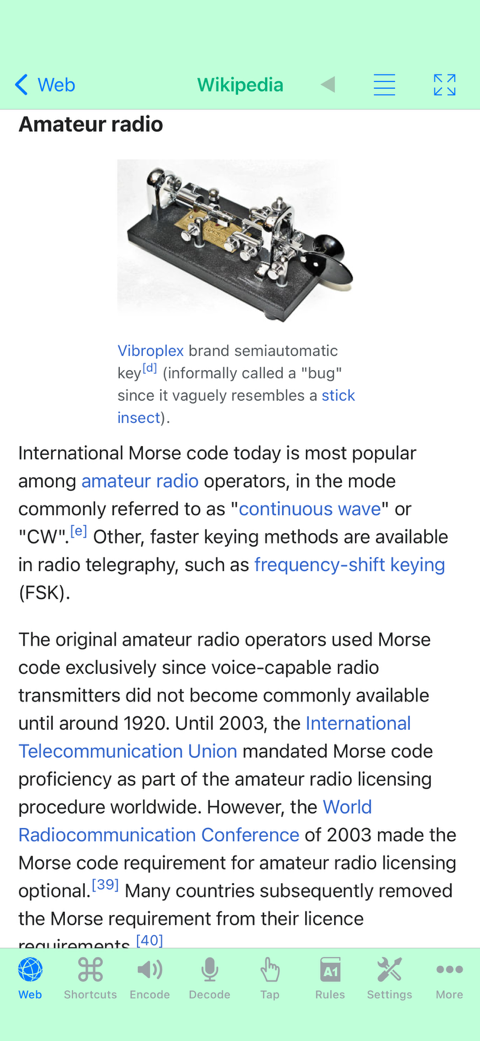
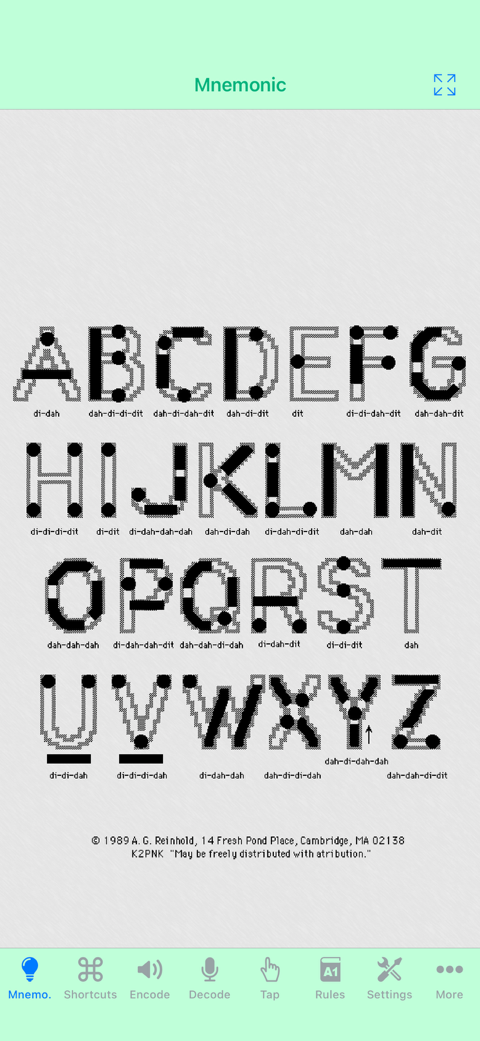
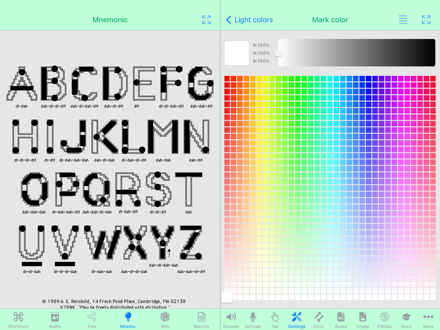
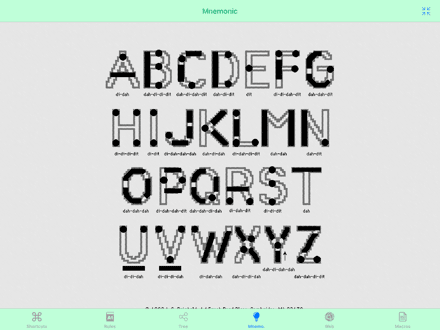
Wikipedia and Visual Mnemonic screens to get information and mnemonics about Morse code.
You can also add your own websites for in-app consultation.
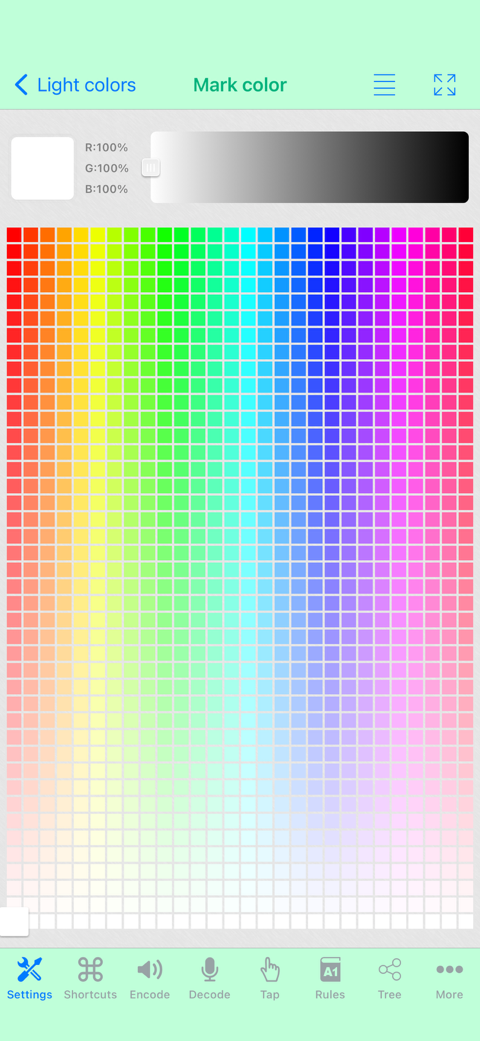
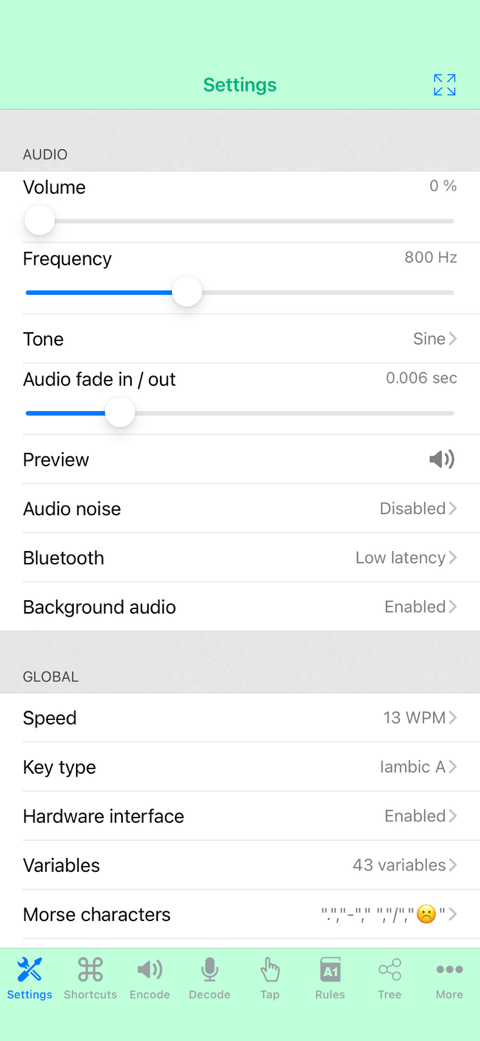
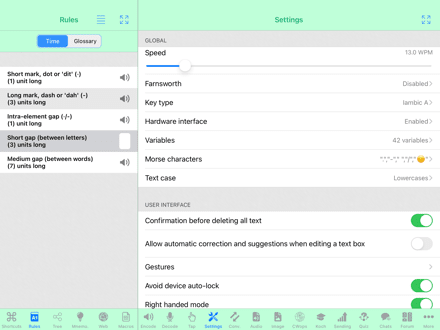
The whole application is highly configurable (frequency, WPM, tone type, color, Morse code, variables ...)
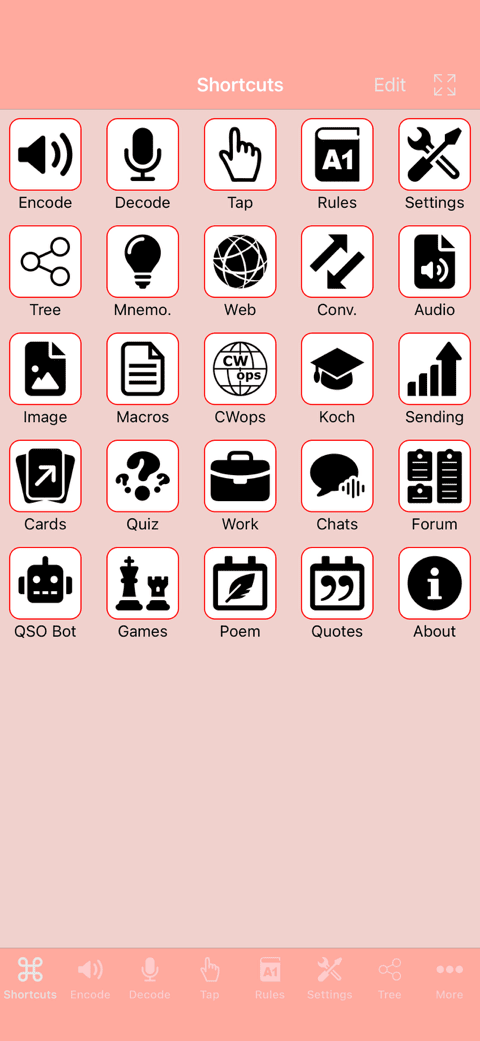
A customizable today view widget can be added to your home screen to display the current date in Morse code.
You can also become part of the Morse-it Social Club (thanks to a renewable subscription) and unlock the following Social features:
Messages, Forums, QSO Bot, Poem of the Day, Quotes of the Day, Games of the Day ... and more.
The following Learning features will also be unlocked (but can also be unlocked with a single one-time in-app purchase if you prefer):
Koch trainer, Sending trainer, Cards trainer, CWops Academy learning method, Quiz, Macros, Dictionaries: abbreviations, QSOs, mnemonics, timing (Farnsworth) and Morse alphabet/Prosigns personalization, appearance customization ... and more.
Some Morse-it features are powered by Icom, a world leader in the amateur radio market.
!!! As seen on TV !!! (UK) in Most Haunted Live: Apparently you can use it to communicate with ghosts (no guaranty though :D)
Video
|
|
|
|
|
iPhone Screenshots
iPad Screenshots
Learning features (in-app purchase or subscription)
They are mainly intended for those who want to learn Morse code efficiently, those who want to improve their skills, and
those who just want to practice.
-
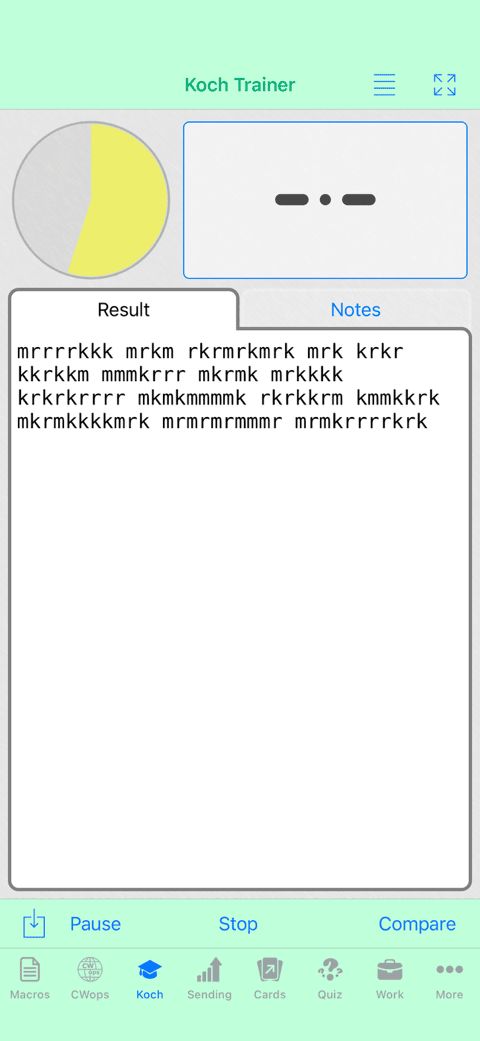
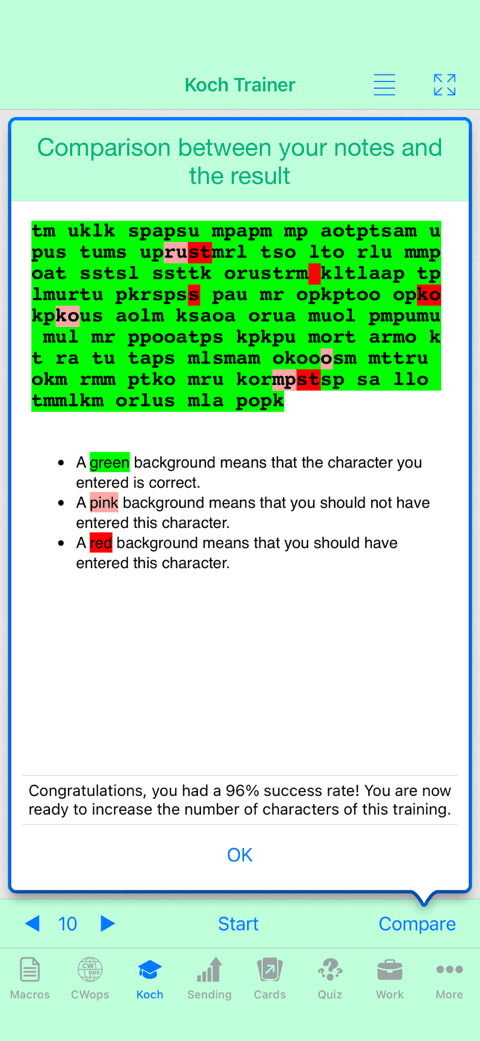
Koch trainer screen to learn Morse code, one letter after the other, thanks to this easy and configurable
method.
-
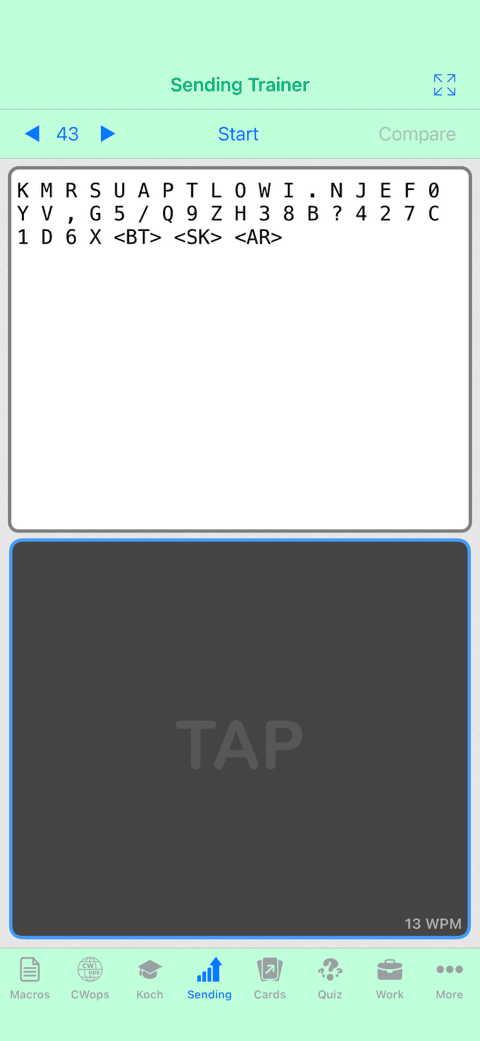
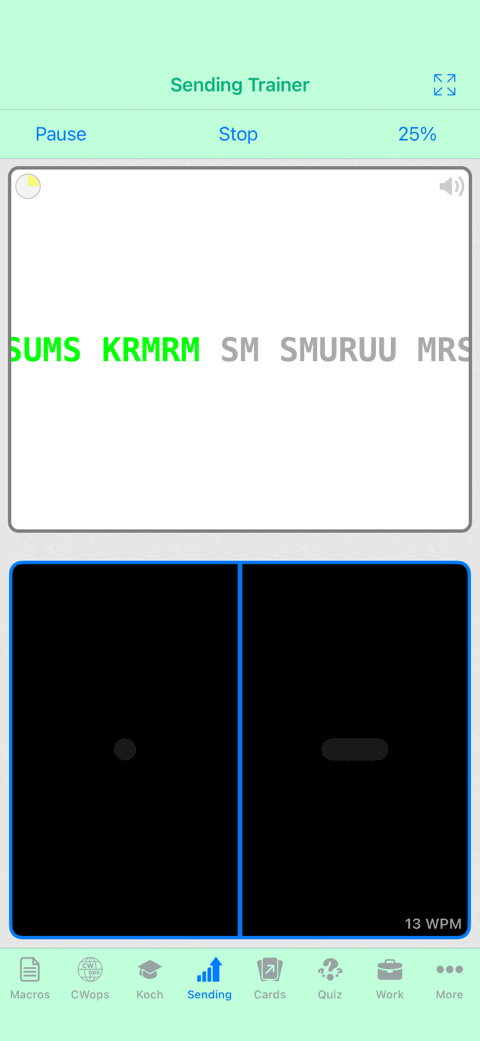
Sending trainer screen to learn sending Morse code, one letter after the other.
-
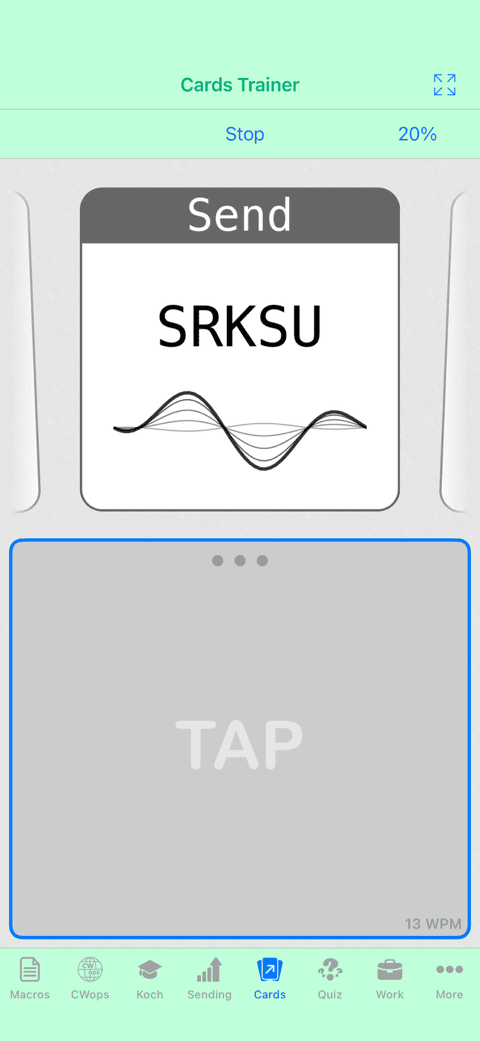
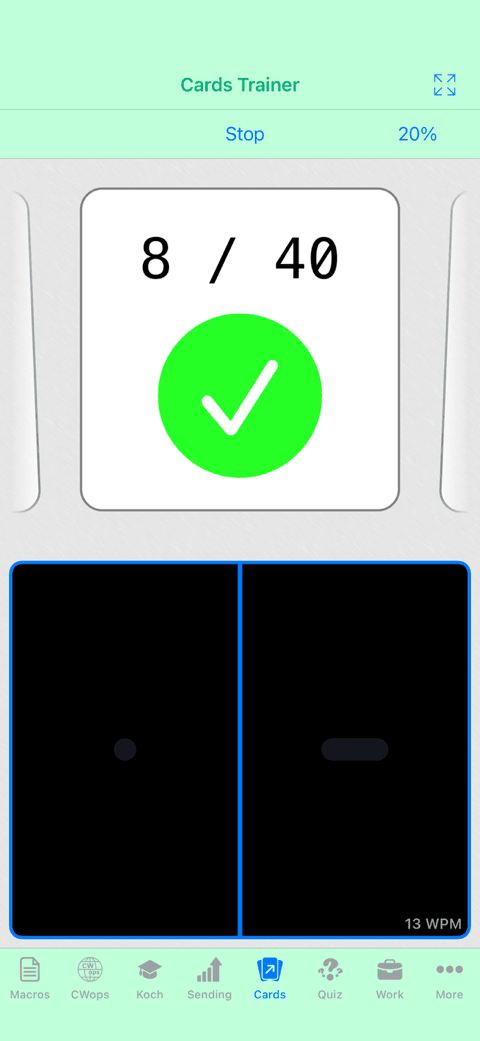
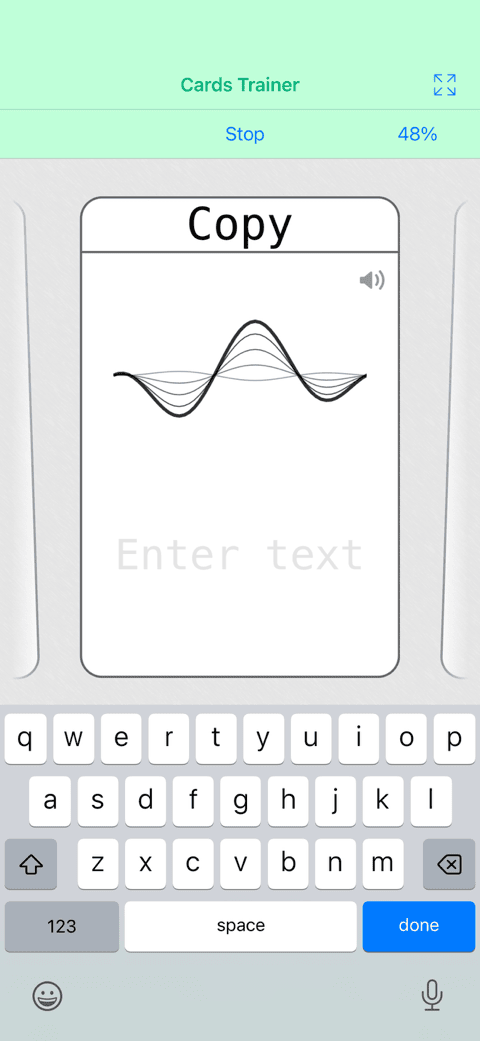
Cards trainer screen to learn or practice copying and sending Morse code, one letter after the other, in an easy
and fun way.
-
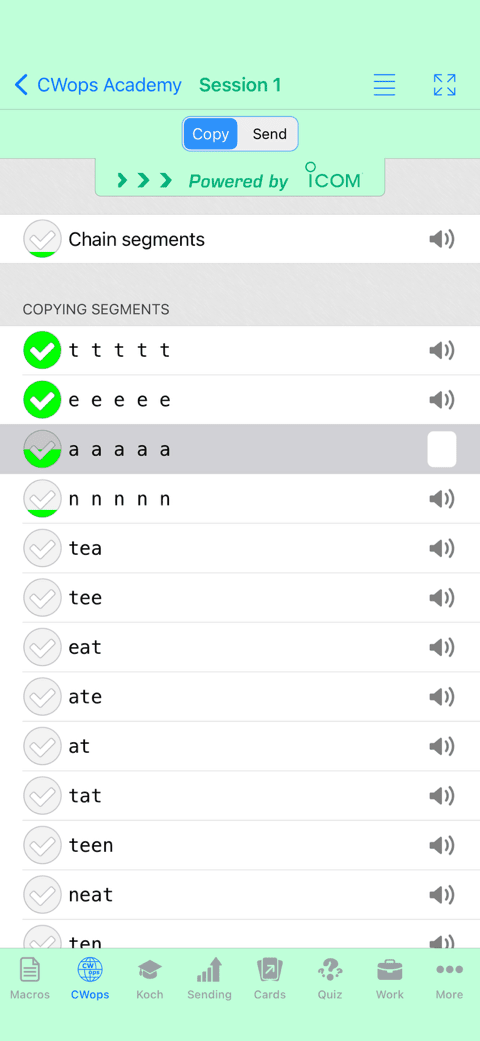
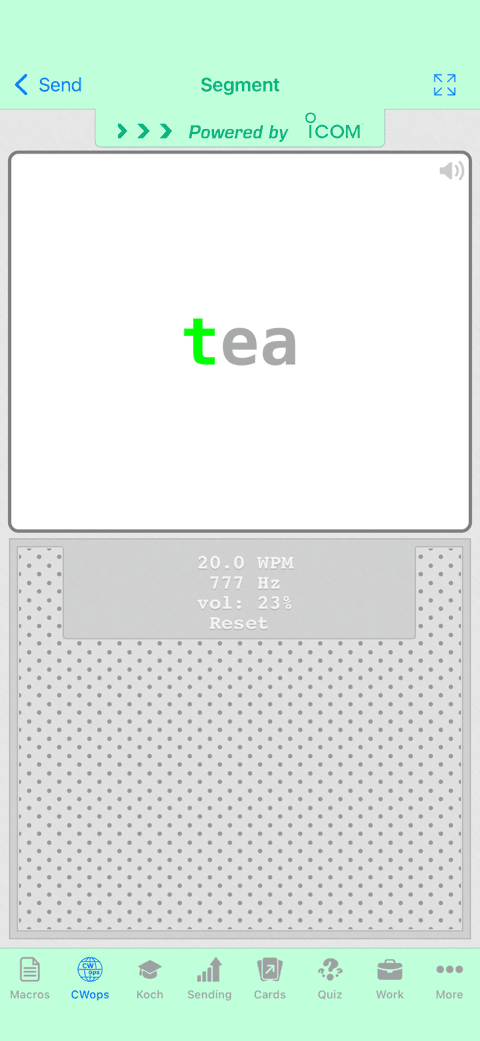
CWops Academy screen: an effective way to learn Morse code, practicing different copying and sending sessions.
The progress is tracked so you can see your evolution.
-
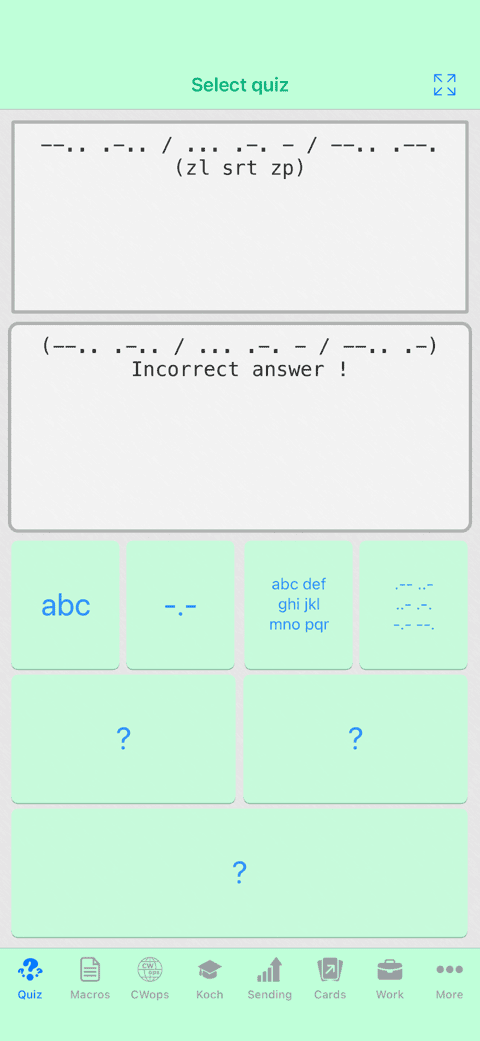
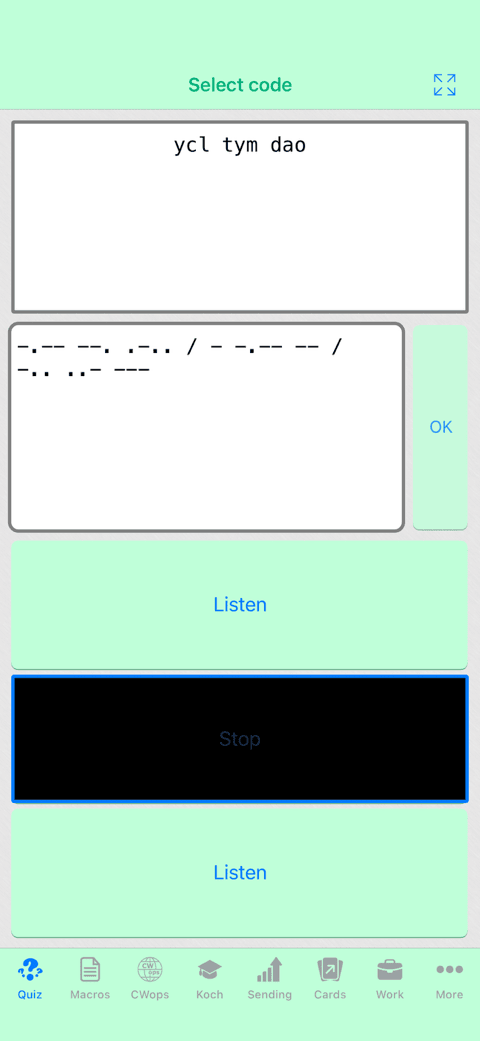
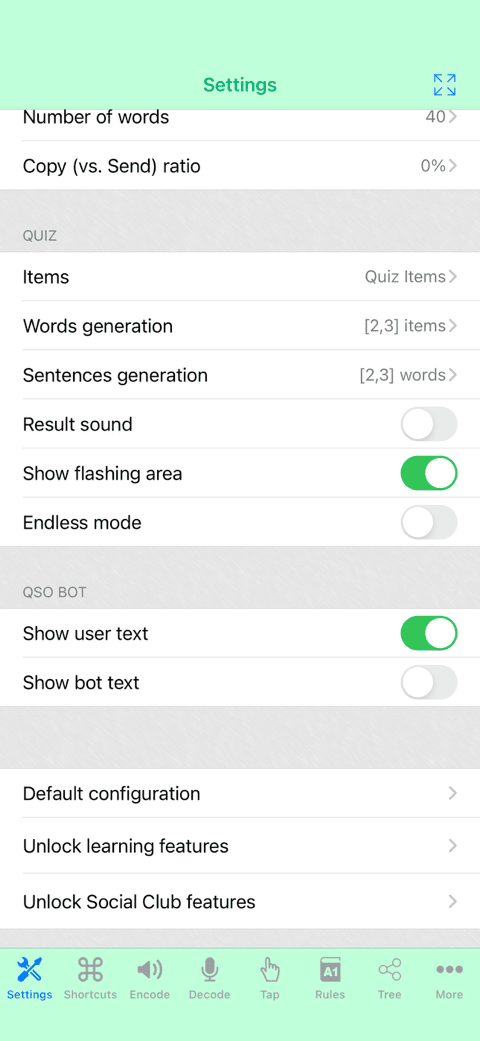
Quiz screen to test your skills. Highly configurable and different modes available (type the corresponding text,
type the corresponding code, select the correct text, select the correct code, random quiz).
-
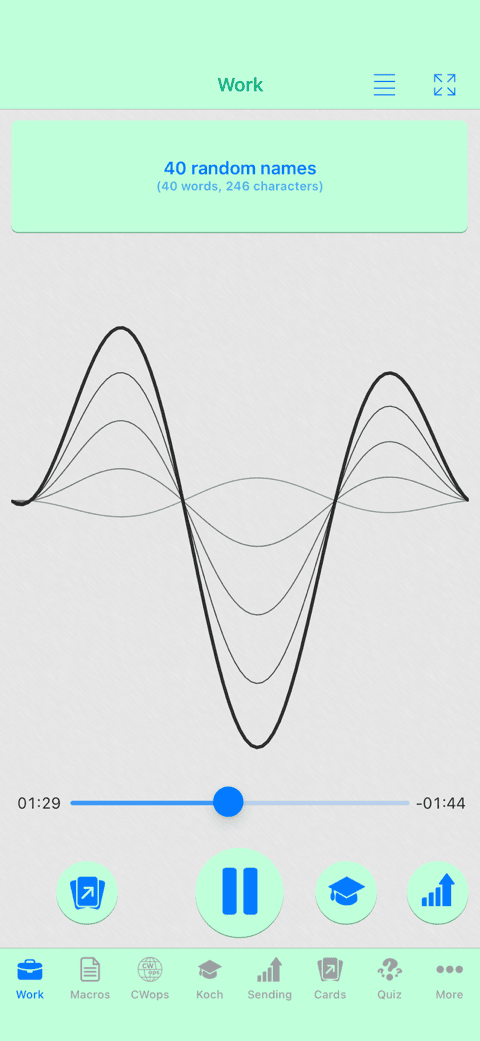
Work screen to quickly enter (or generate) some specific text and use this text with the different trainers, or
the audio player (which can be used when the application is in the background).
-
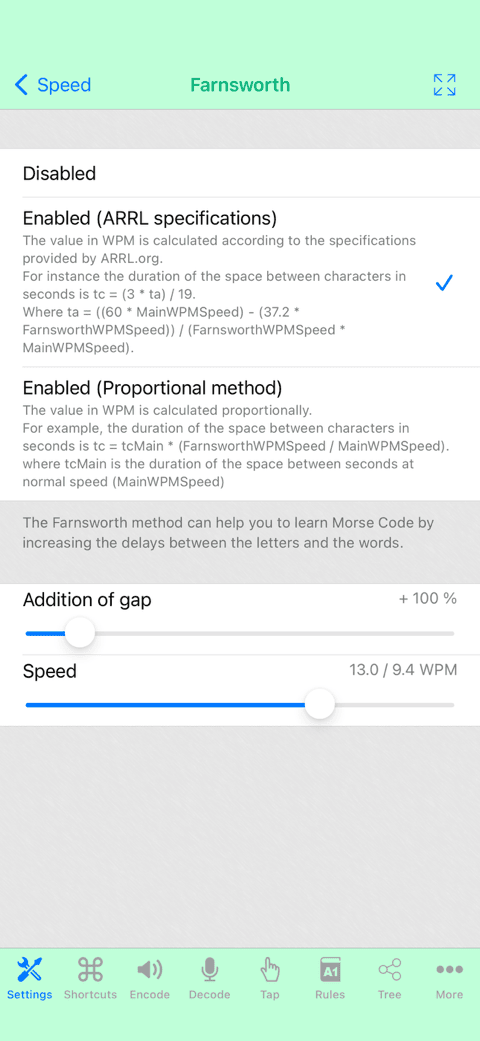
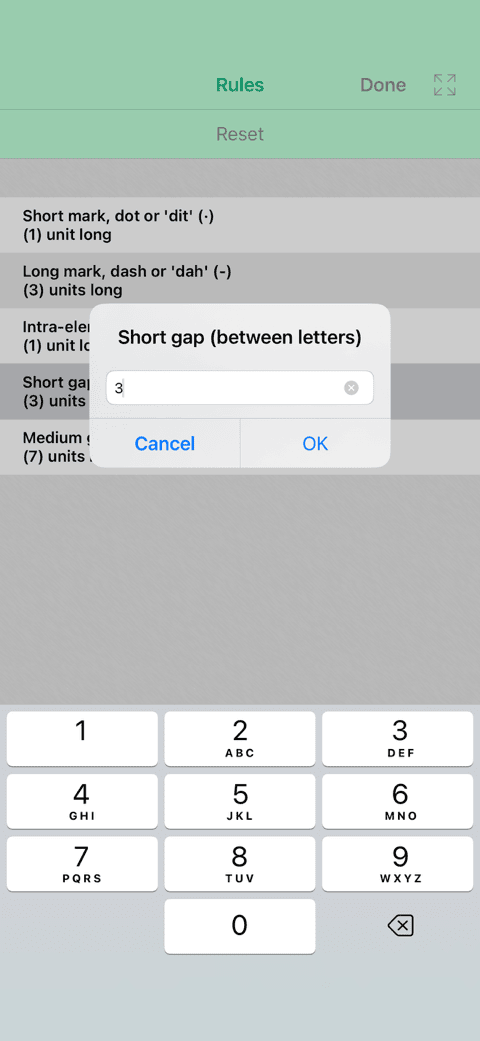
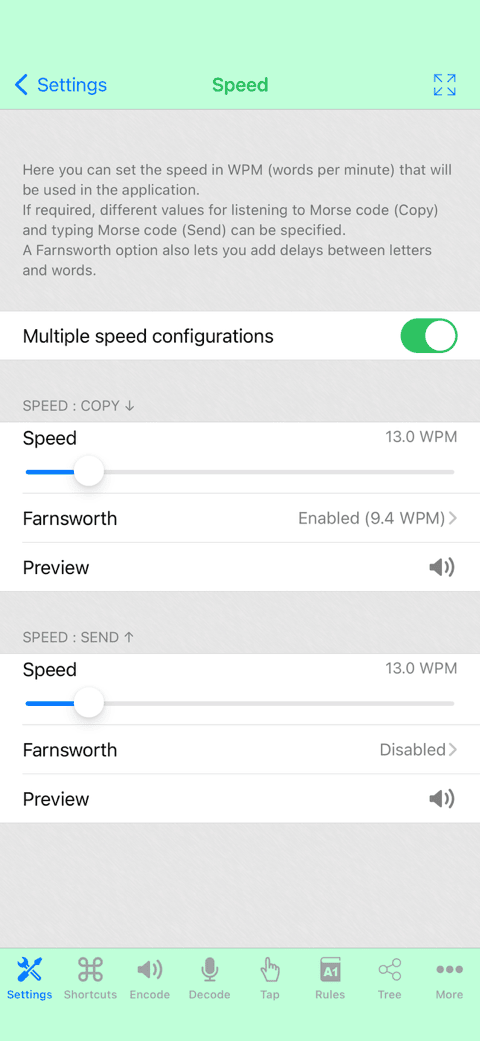
Timing units edition and Farnsworth method. Option to set different speeds for send / copy.
-
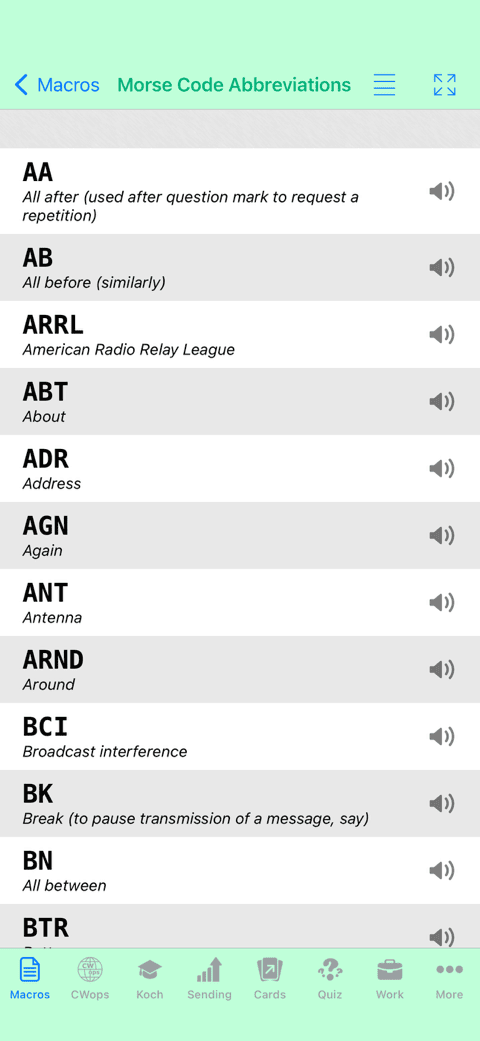
Predefined macro sets and dictionaries (in English): Morse abbreviations, Morse QSOs, Morse mnemonics, Common
English words...
-
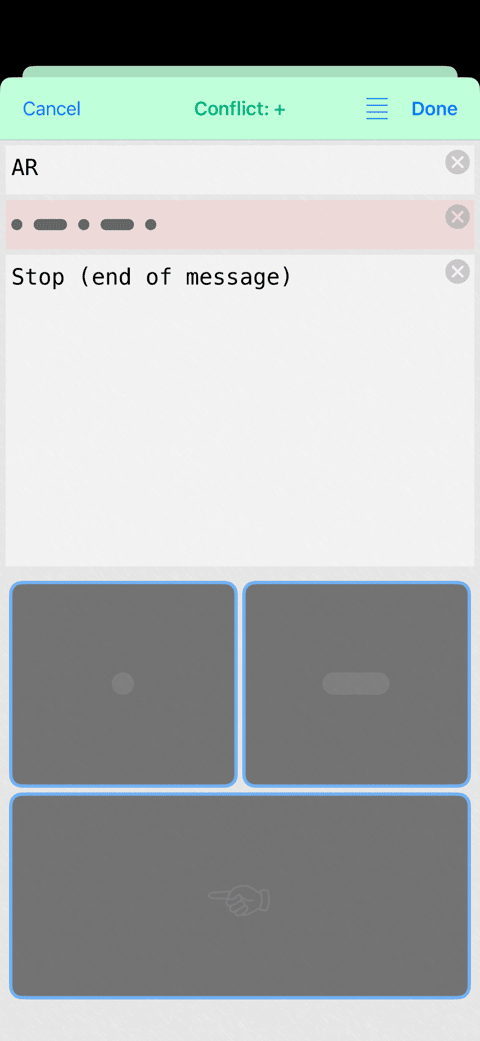
Morse alphabet edition (add/remove/change characters or prosigns, with collisions/priorities handling).
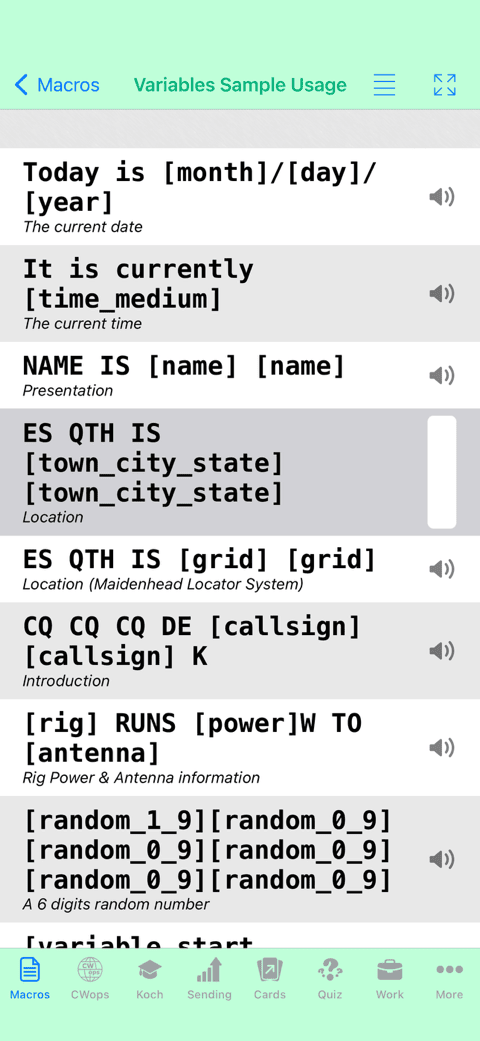
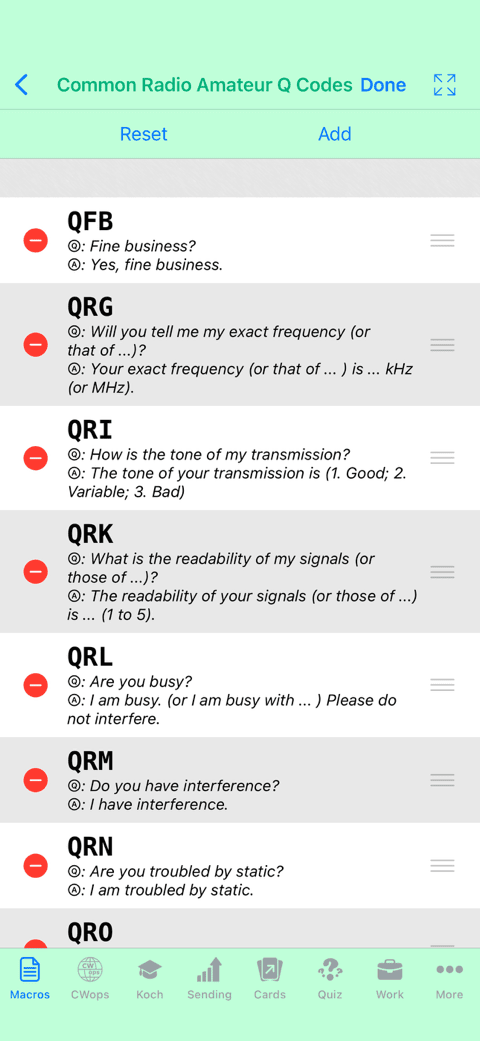
Editable Macros (allows to quickly insert some predefined text and variables).
The Morse alphabet and the macros can be imported/exported for backup, sharing and modification on a computer.
-
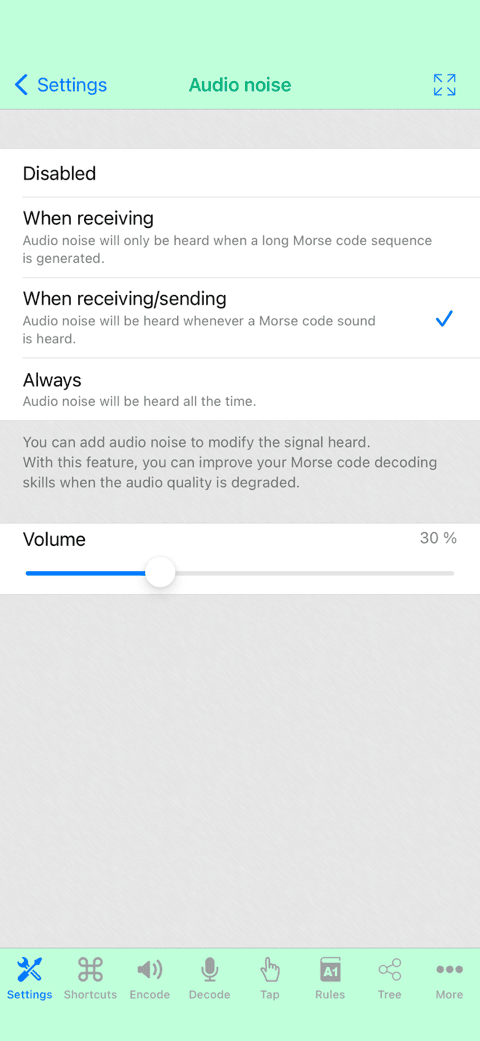
Possibility to add some noise to the audio signal.
Audio decoding can be performed even while you are in the other screens of the application.
-
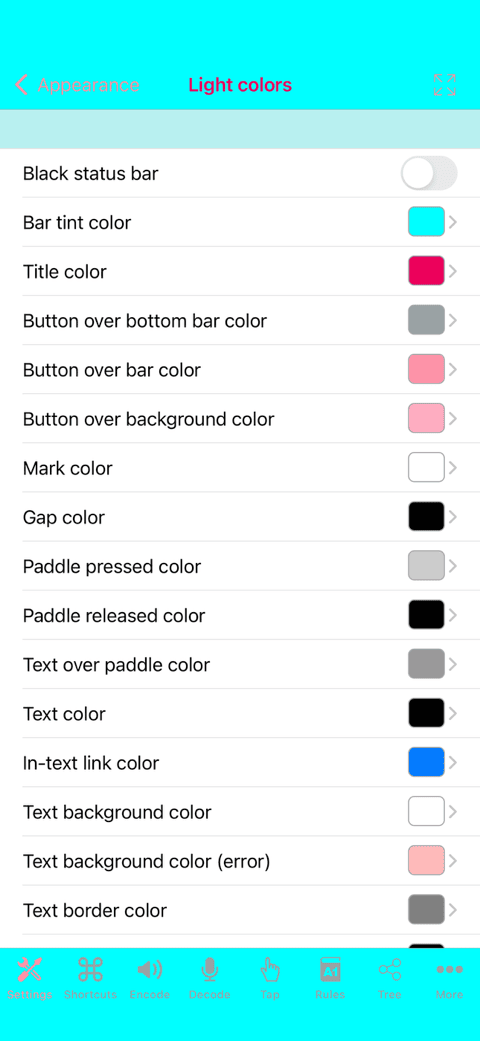
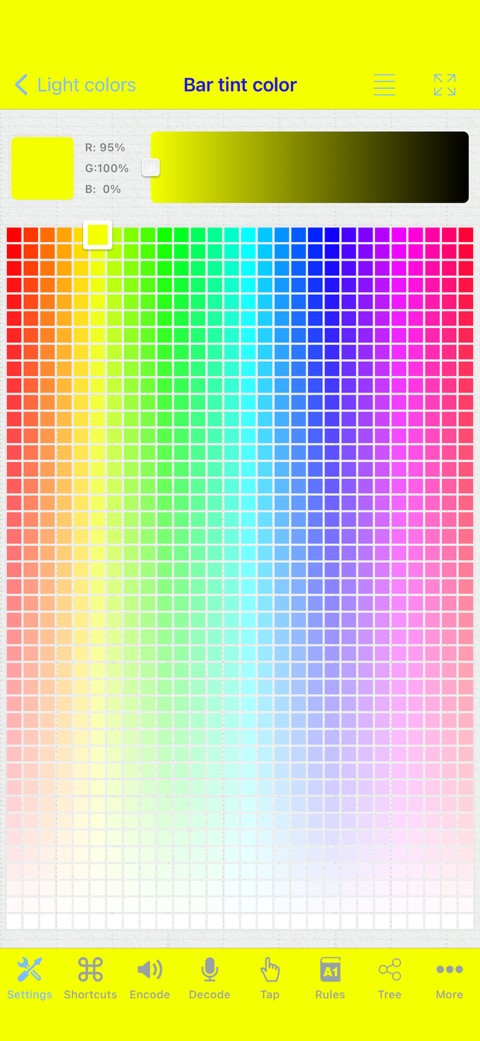
Bonus: Customizable application's background and colors.


Social club features (subscription)
Use of your existing skills and interact with your friends or other users, play games, work with some daily updated
content, and have a good time thanks to the knowledge you have acquired.
-
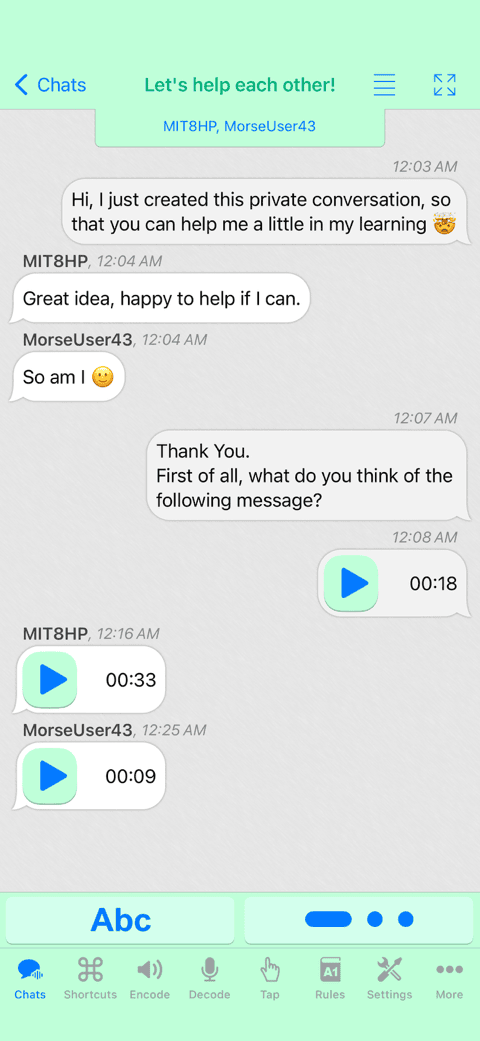
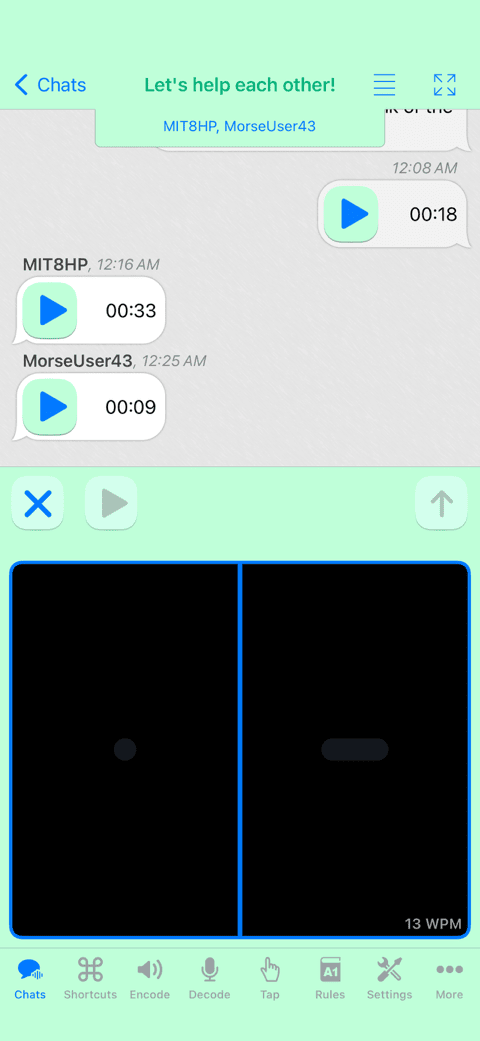
Messages screen that allows you to send and receive Morse code or text messages with some private groups of
friends.
Read and reply to messages when you want, at your convenience.
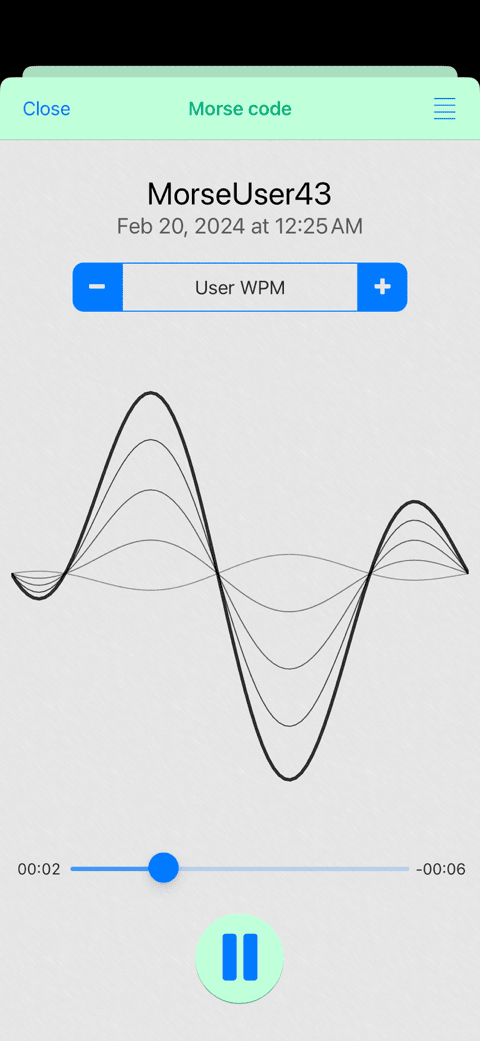
-
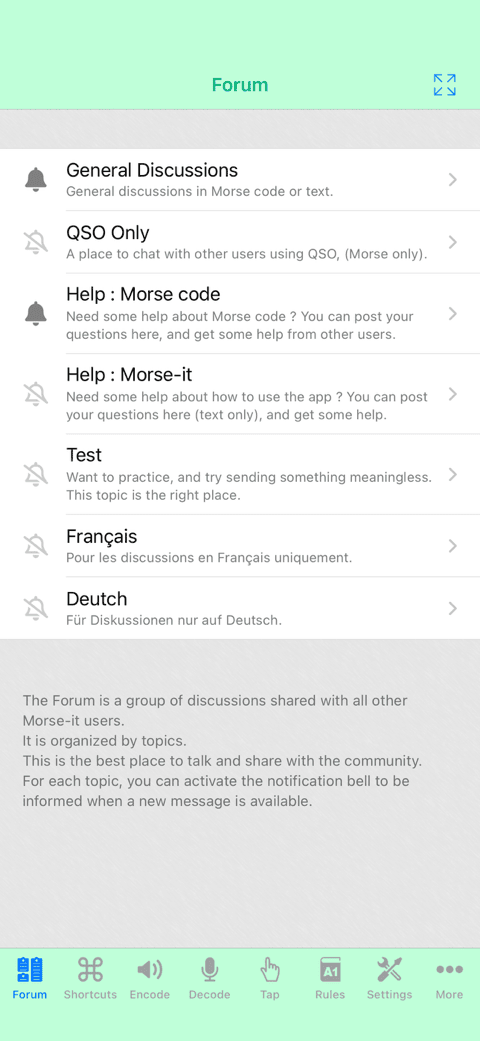
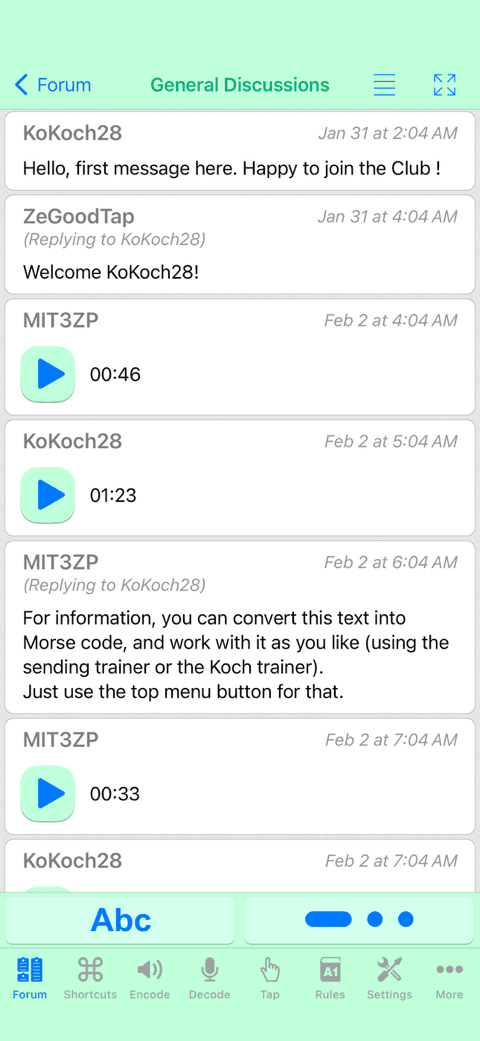
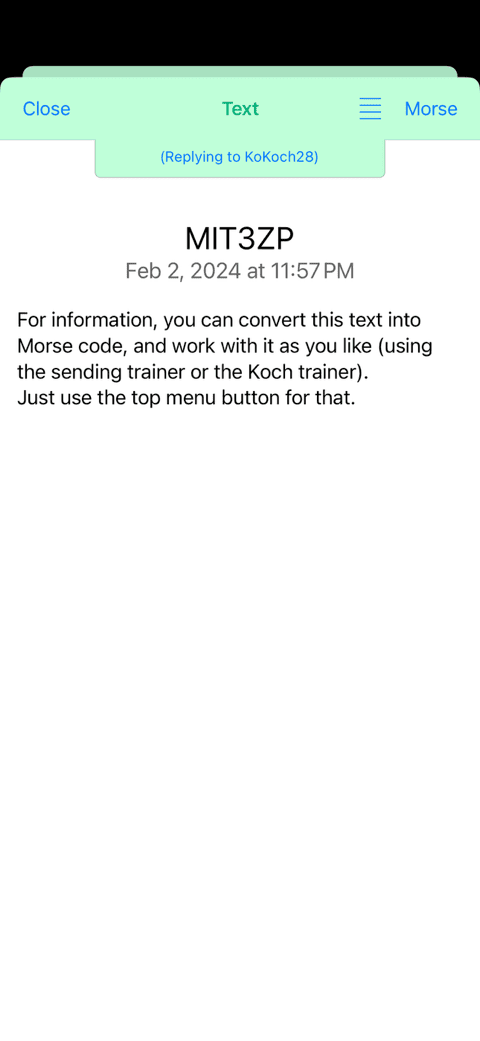
Forums screen that allows you to discuss with other users about different topics. Either with Morse code or text
messages.
A nice way to share with the community and find new contacts.
-
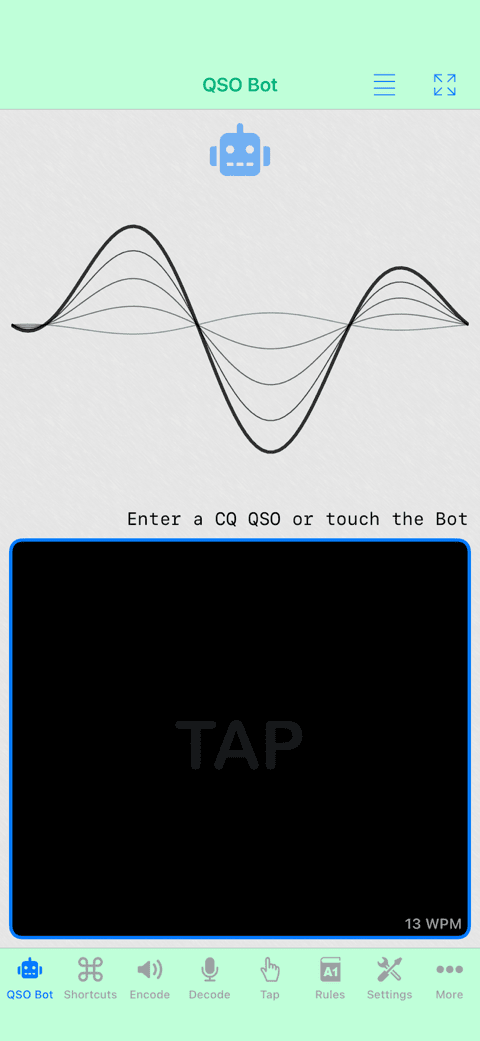
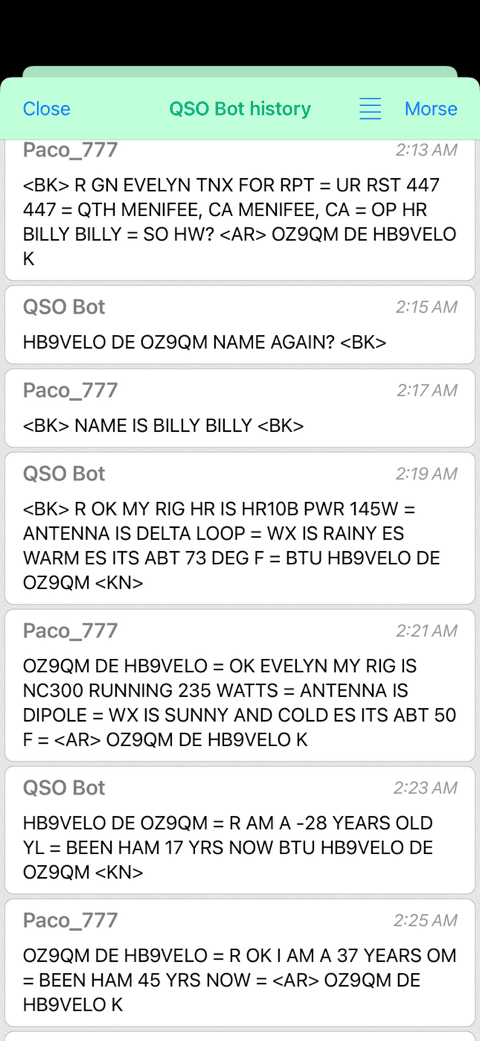
QSO Bot screen to practice your QSO conversations with a robot, always there for you when you need to talk to
someone :)
-
News reader (where you can specify the RSS feed of your choice) that allows you to work directly in Morse code
with the summary (or content, if any) of each article.
It has a custom widget for your home screen that nicely displays the images and titles.


-
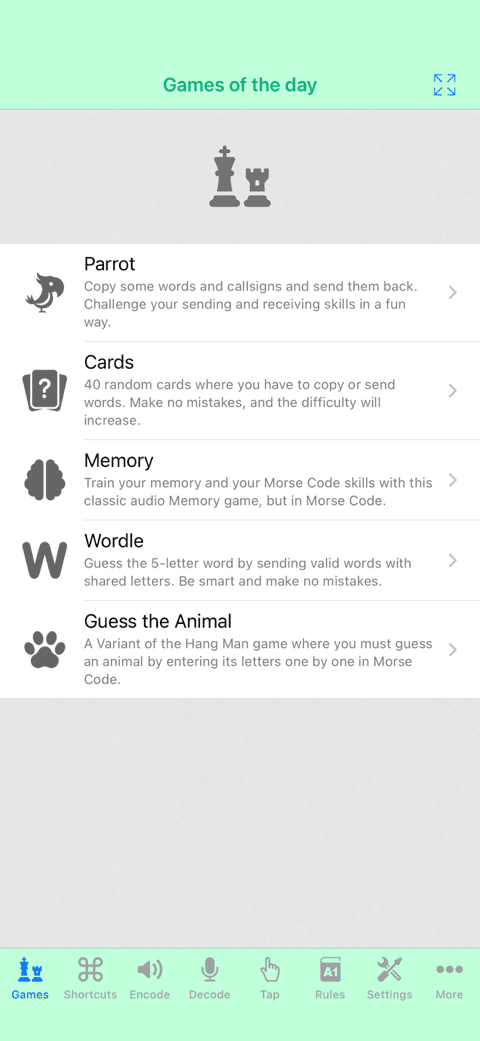
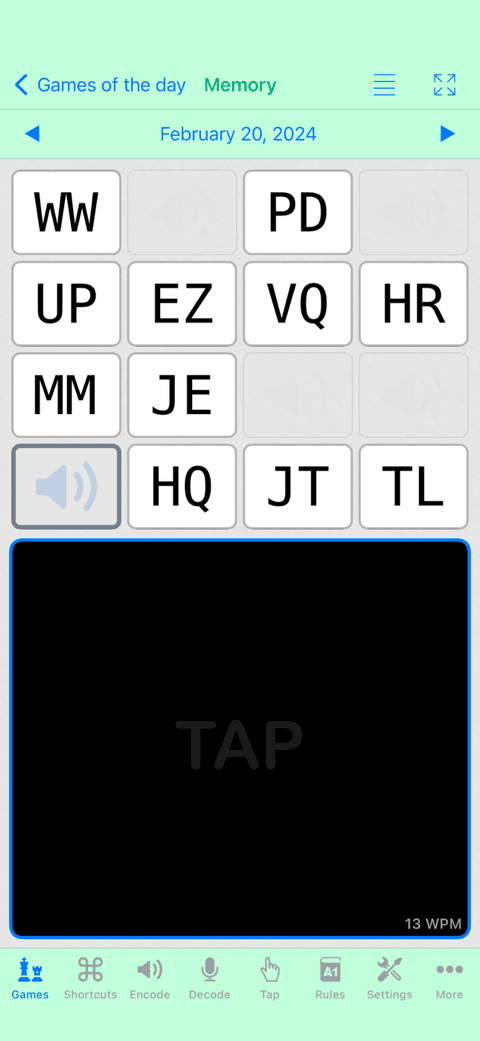
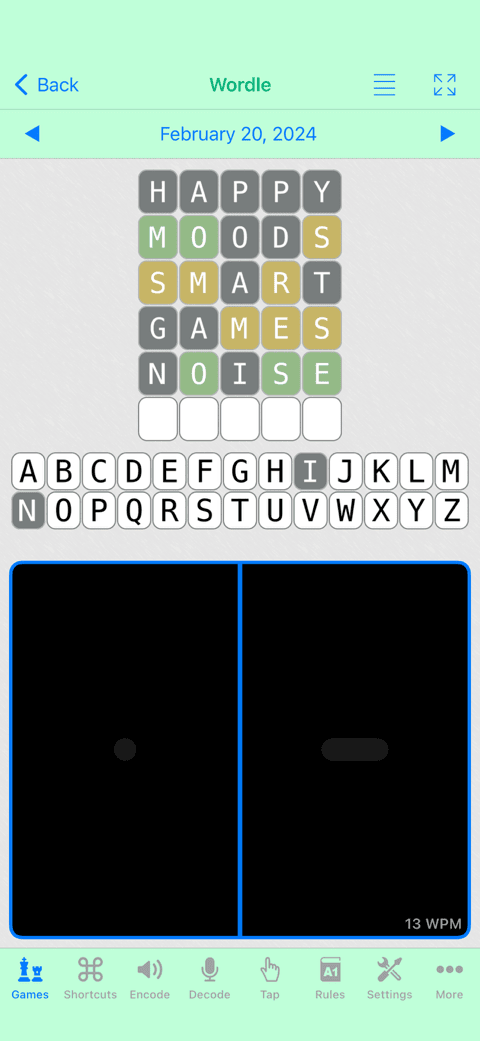
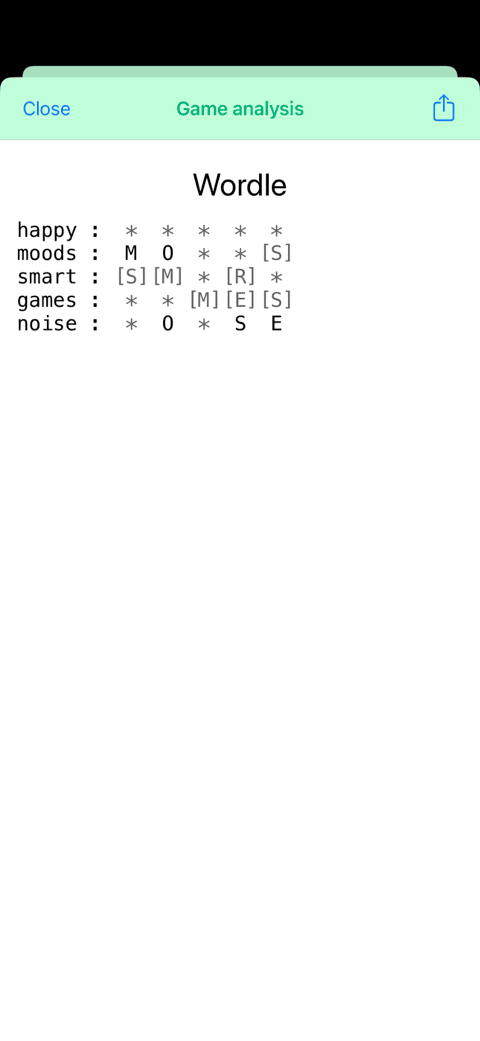
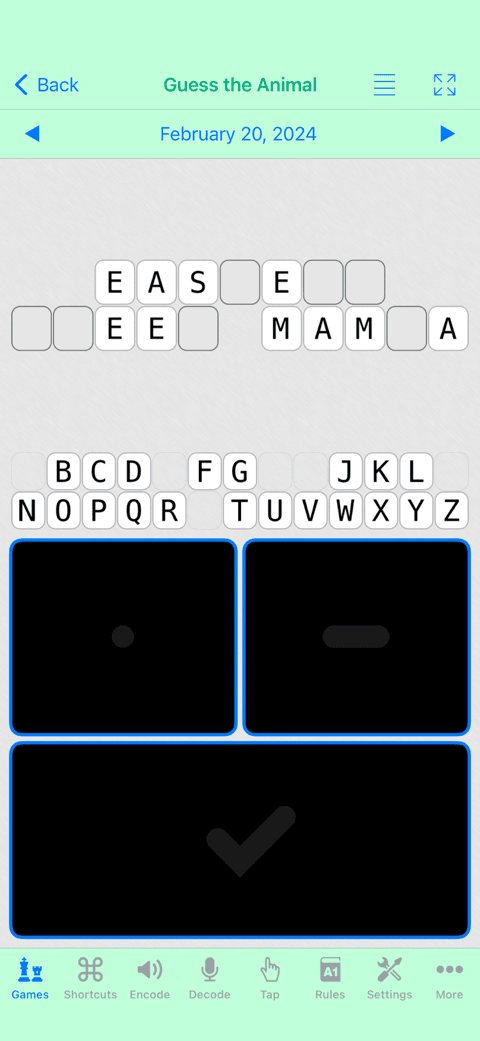
General purpose games so you can play fun and short games every day in Morse code.
Possibility to compare your scores with other players if you want.
3 different games currently available (Wordle, Memory, and Find the Animal)
-
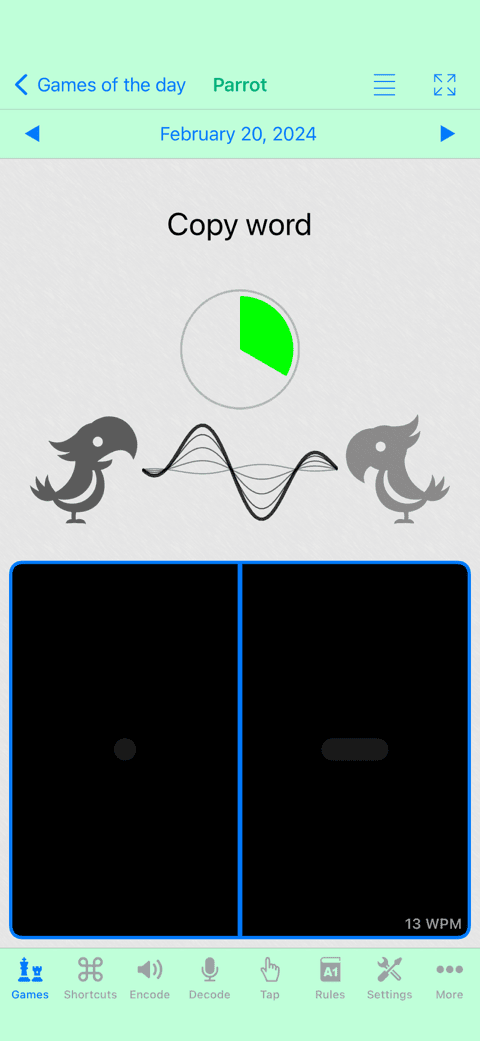
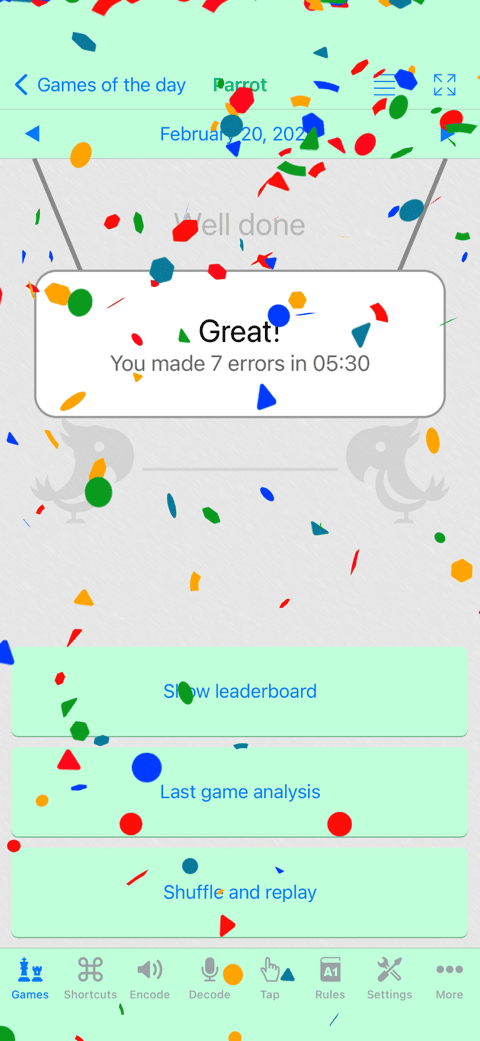
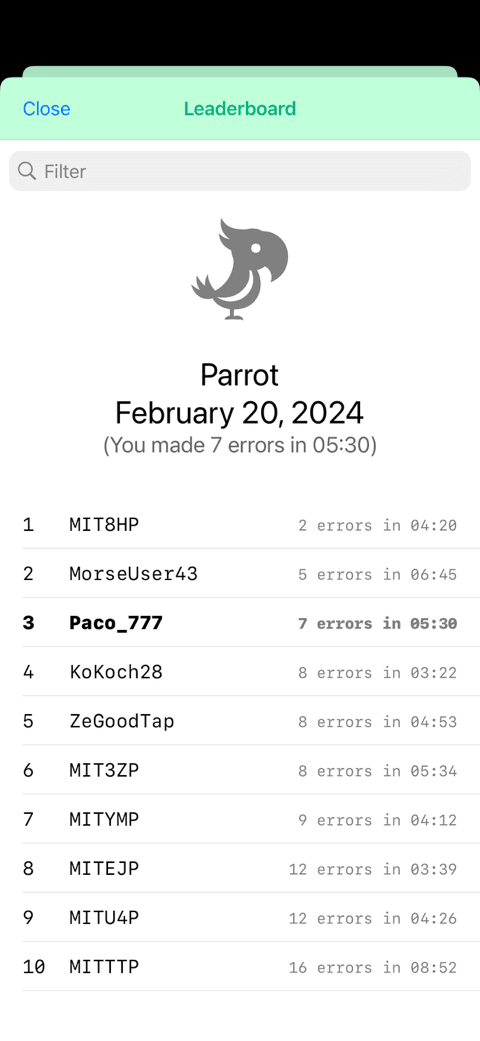
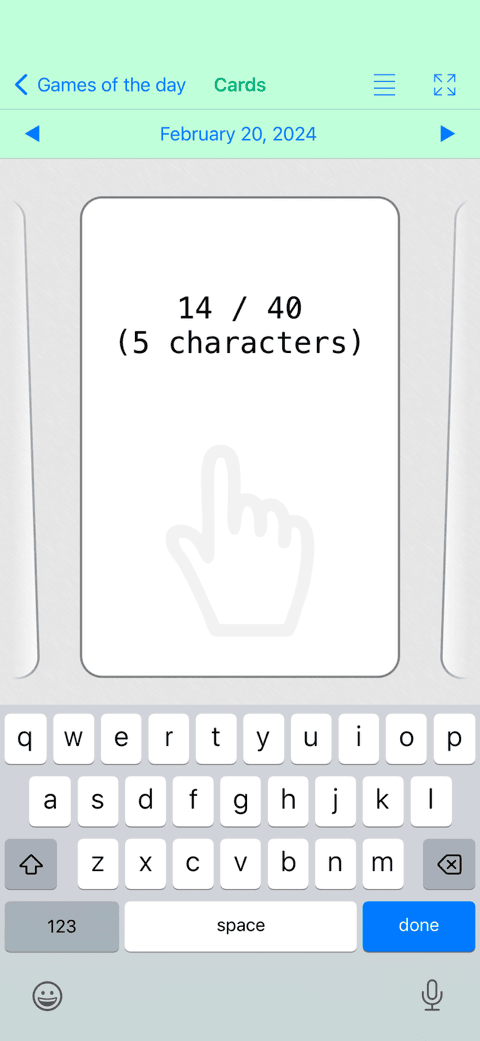
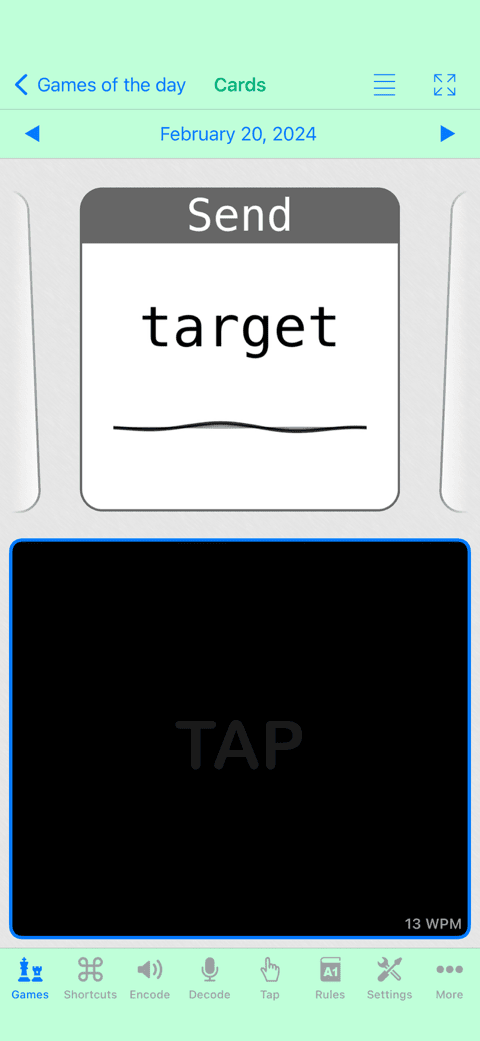
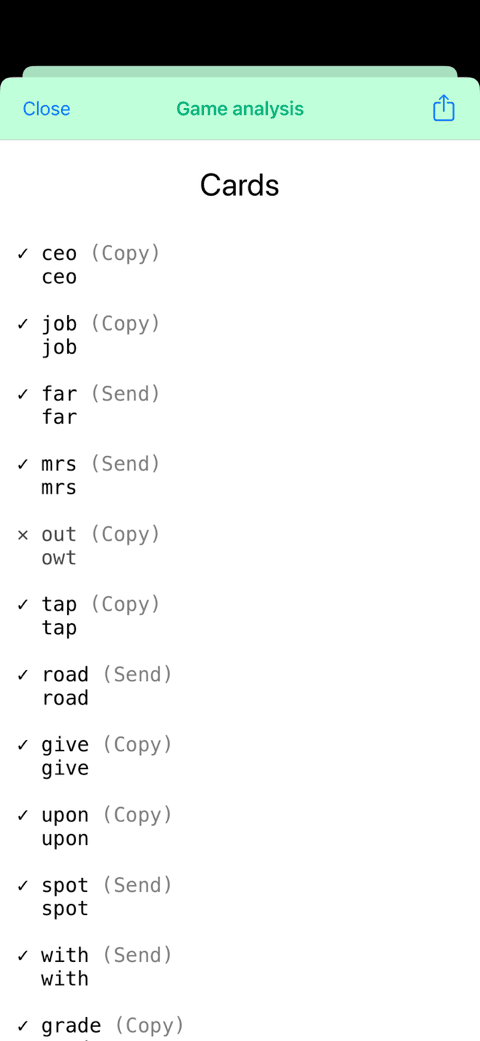
Hybrid games for a perfect mix of fun and training.
A good challenge every day, where you can also compare your performance with other players.
2 different games currently available (Parrot and Cards)
-
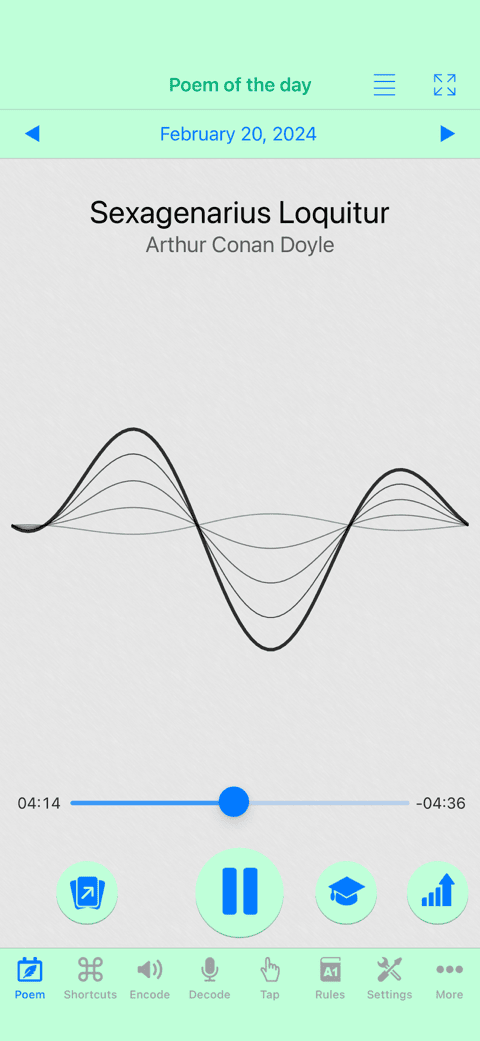
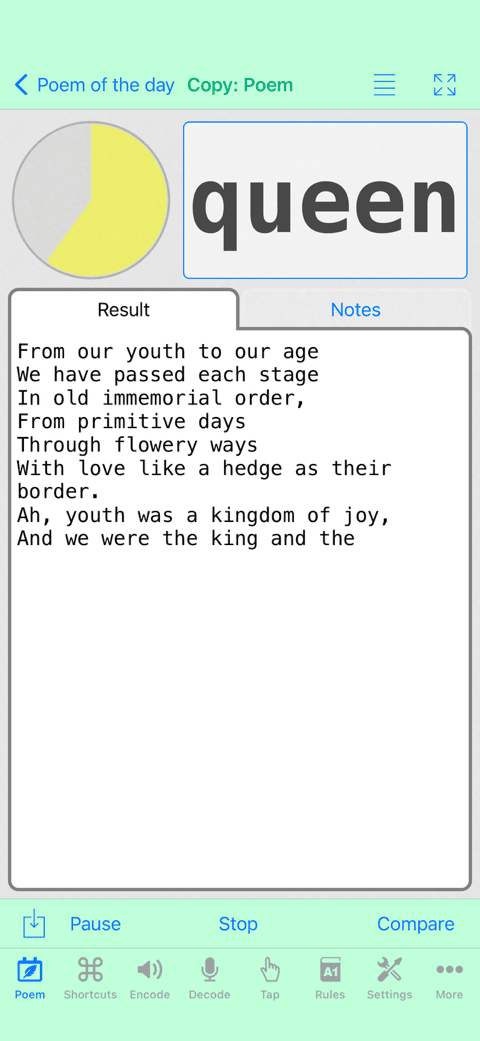
Poem of the day. A new poem to listen to every day.
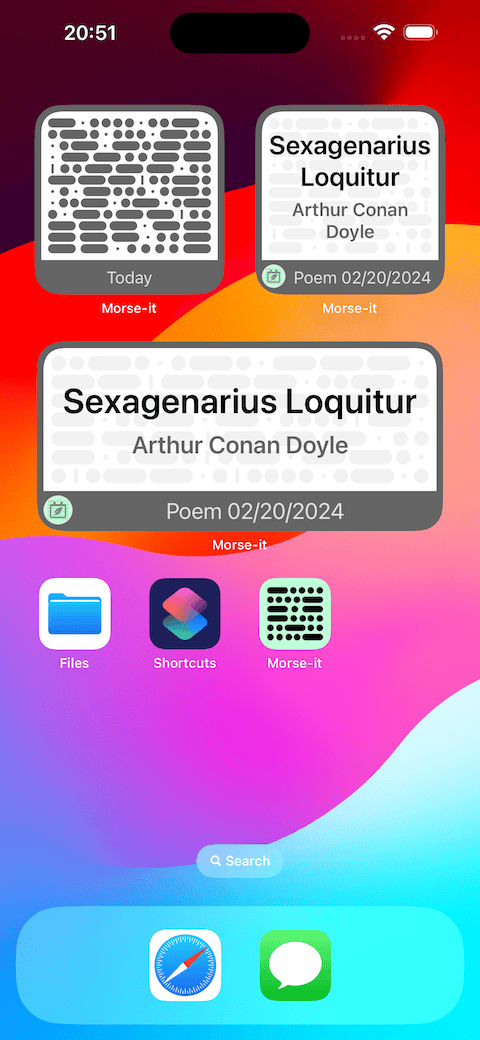
A dedicated Home screen widget is provided and can be added, showing you the new title and author, and reminding you to decode the new poem.
Possibility to practice copying and sending each poem.
-
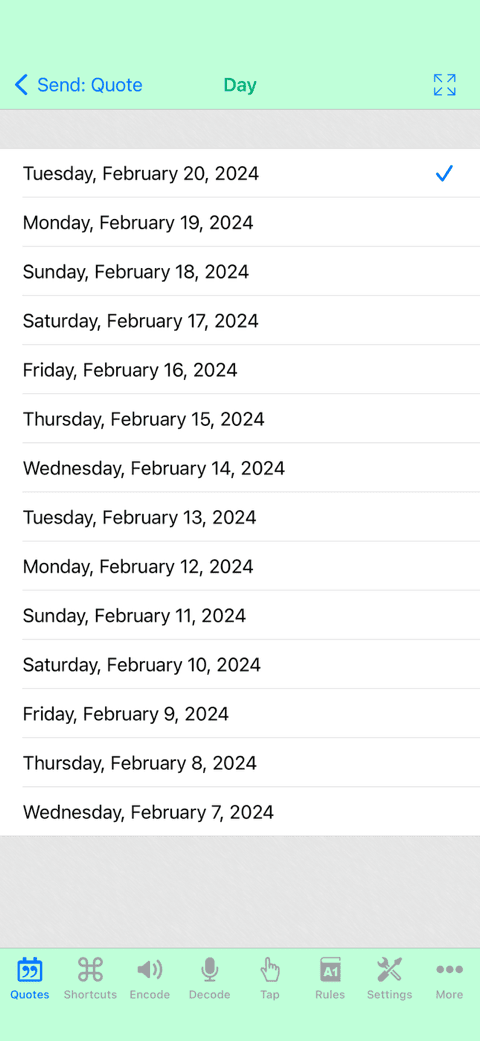
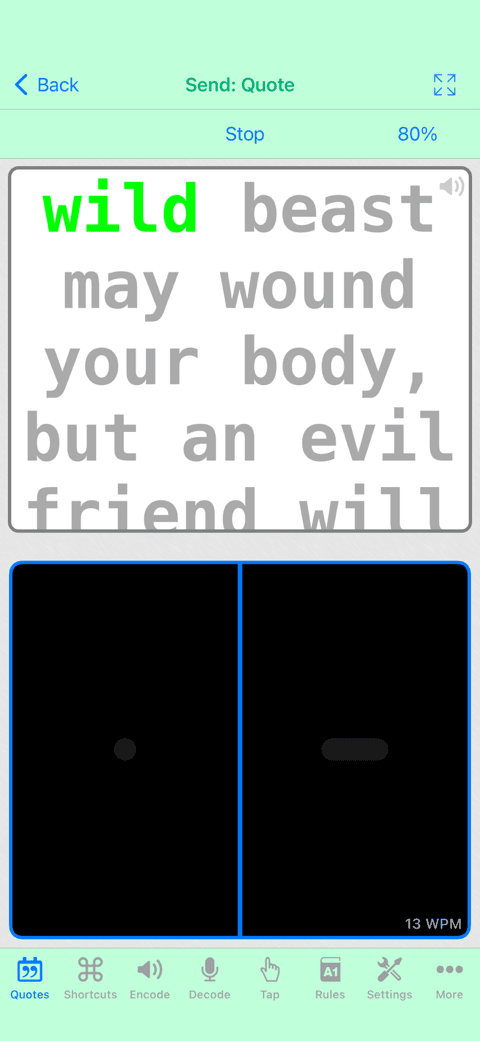
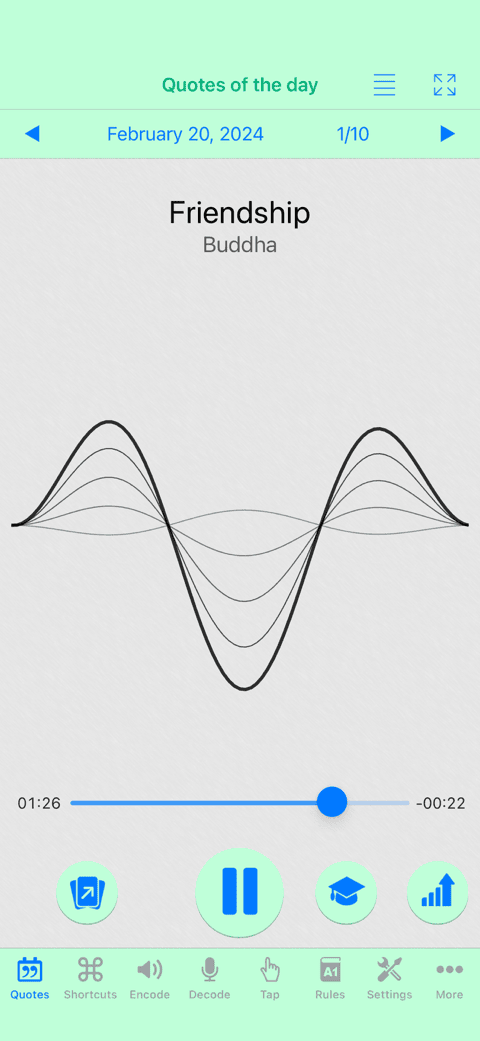
Quotes of the day. Listen to 10 new quotes every day.
A dedicated Home screen widget is also provided.
You can also use it to practice copying and sending.


Hardware Interface
It is possible to use Morse-it with external hardwares thanks to its Hardware Interface feature.
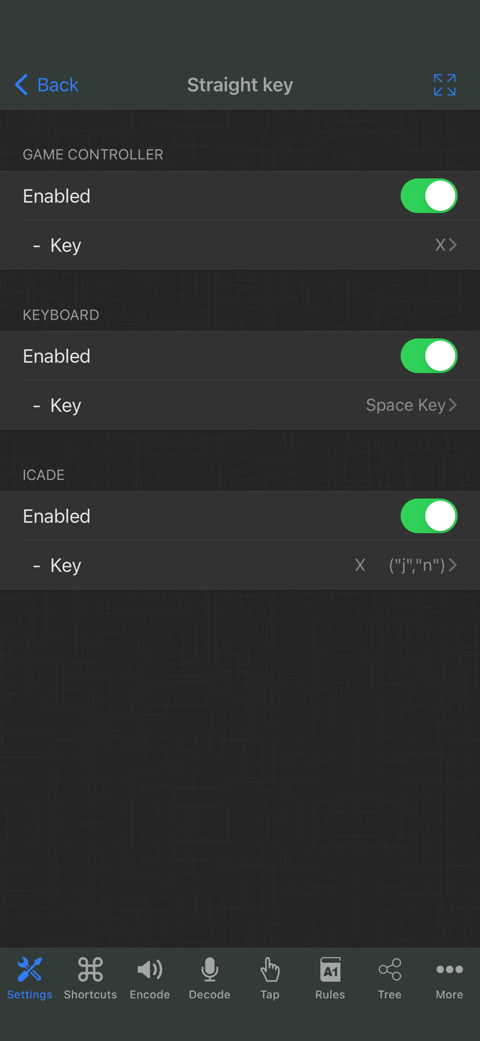
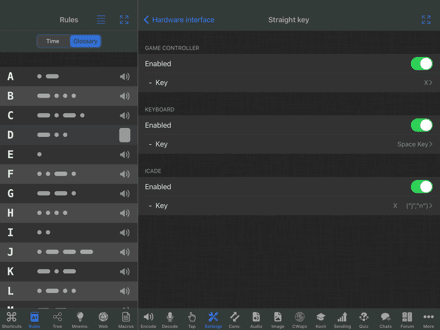
You can use MIDI devices, external keyboards, iCade compatible controllers, or MFI Game Controllers to control the different Key types displayed on the screen.
The most enthusiastic will even be able to interface their favorite Morse Code key thanks to that feature.
MIDI devices
Every note can be assigned to the dit or dah areas of the touch screen.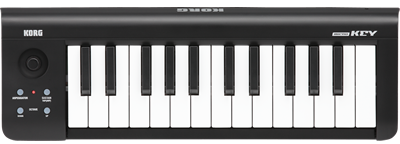
Game Controller
Every button can be assigned to the dit or dah areas of the touch screen.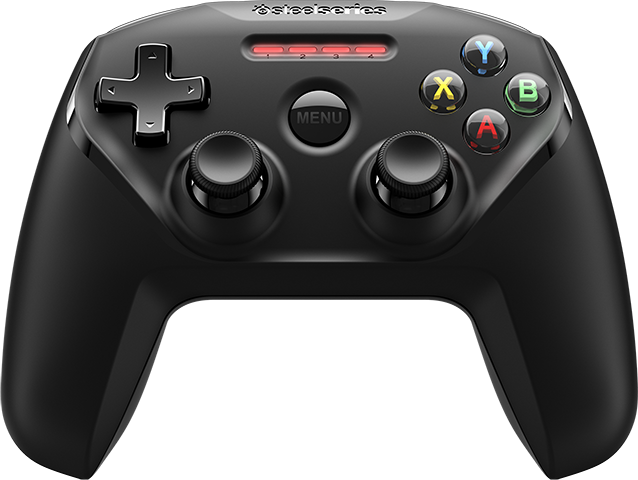
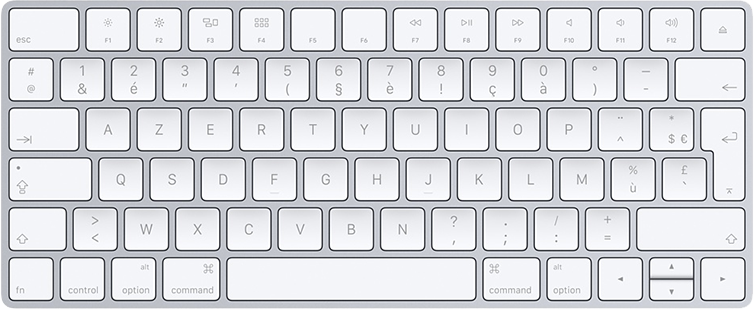
Keyboard
Keyboards, connected using bluetooth, or using USB (thanks to a Camera Connection Kit), can also be used.Every keyboard key can be assigned to the dit or dah areas of the touch screen.
-
Note for iOS versions lower than iOS13.4 :
This is experimental: it is not officially possible to detect key presses and key releases on iOS, which is something needed for a Morse Code input.
Fortunately, there is a currently working workaround allowing to detect them, but this workaround has its limits: it does not work when two keyboard keys are pressed at the same time.
While this limitation is not a problem with Straight or Novice Keys, it can be a annoying with Iambic keys.
However, using an Iambic Key, it is not only possible to assign the dit area and the dah area, but is is also possible to assign a dit+dah area that can be used when the two keys should be pressed at the same time.
- With iOS13.4 or higher, the keyboard is fully supported (key presses and key releases + special keys recognized, like the control key).
iCade Controller
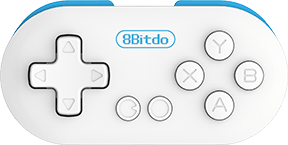
iCade compatible game controllers are supported.In fact those controllers are seen as keyboards by iOS.
To work correctly, those controllers send a different keyboard character to generate a button press and a button release.
(this is necessary, because it is not officially possible to detect key presses and key releases on iOS).
Every iCade button triggers two keyboard characters (one for press and one for release) which can both be associated to the dit or dah areas of the touch screen.
Morse Key : Trinket M0 / iPac / Makey Makey / Adafruit Feather / VBand adapter / Arudino ...
For the enthousiast, it is possible to connect a real key to the iOS device, and to use it thanks to those supported Interfaces in Morse-it (MIDI / Game Controller / iCade / Keyboard). |
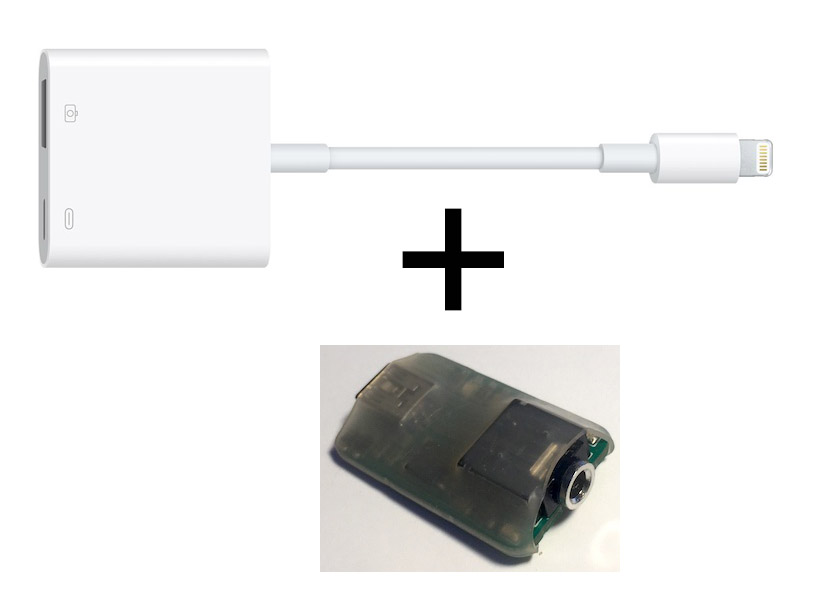
The easiest and probably best solution is to get the TinyMIDI device. It uses the MIDI interface (without the problematic side effects as with the keyboard interface) and it uses Bluetooth low energy, so you can connect it directly to your phone or use it remotely with an external power supply. Finally, you can either uses the capacity touch sensors to use it on the go, or plug your own key thanks to the 3.5mm jack. |
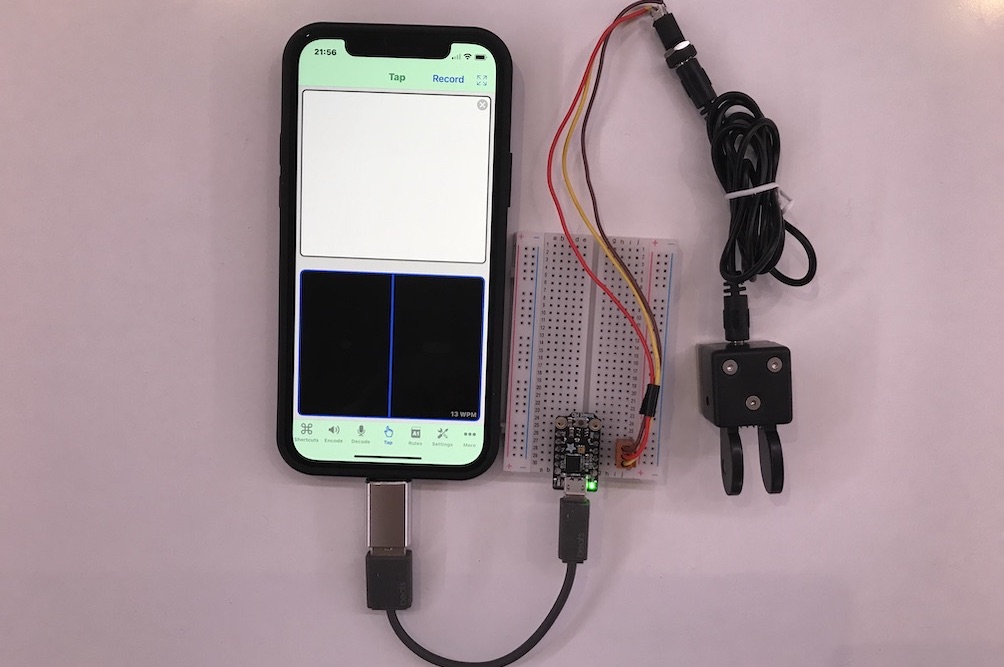 |
Here is a cheap and easy way to create a MIDI adapter using and Adafruit Trinket M0. A MIDI adapter won't interfere with the iOS keyboard (e.g : the onscreen keyboard will still be displayed), so it should be the prefered choice. |
 |
A ready-made solution can be to use the VBand adapter created by Ham Radio Solutions (click here, then click on the "Store" button) which turns a Morse key into a usb keyboard. In order to use it with your device (on older devices), you will also need a usb to lightning adapter, like the one proposed by Apple, here. Here is a great video from NexxuSix/KD9MED explaining you how to configure the VBand adapter with Morse-it. Sum-up: To configure the VBand adapter in Morse-it: (iOS13.4 or higher is mandatory)
|
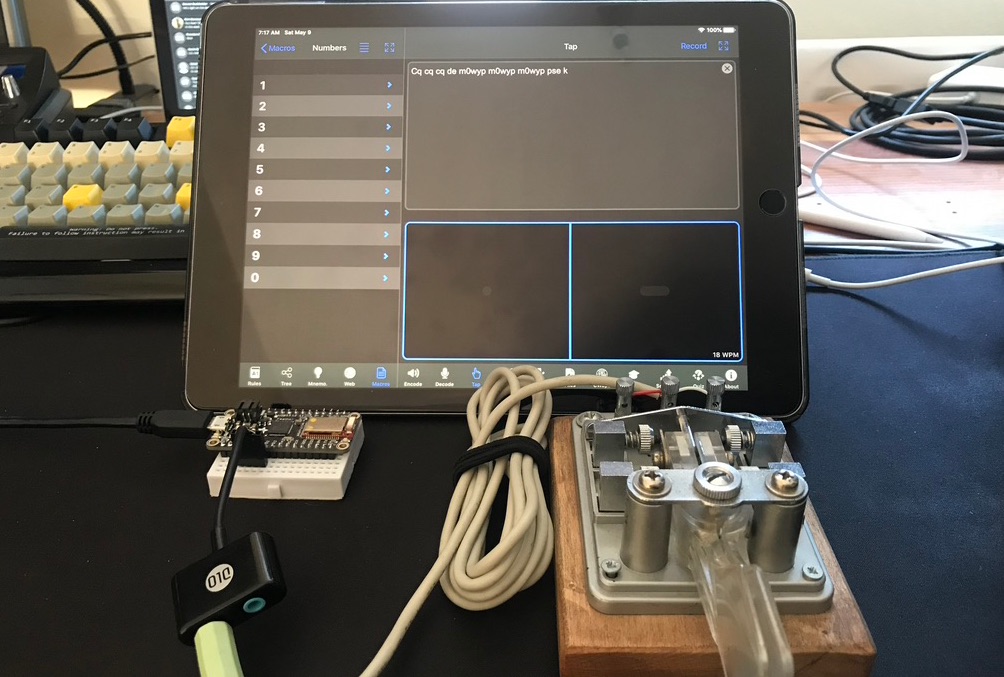 |
In his blog, Joshua explains in details how to connect an iAmbic key (with support of the dit/dah pressed at the same time). He is using an Adafruit Feather 32u4 Bluefruit LE (connected to the device using bluetooth). He is kind enough to share, not only step by step instructions, but also the full source code used to configure the Adafruit. |
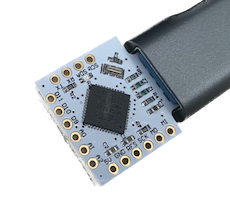 |
As showcased by segrus, with a little soldering skill, you can use an Arduino Leonardo to connect your external hardware. On older devices, a Camera Connection Kit is used to connect the Arudino to the device. |
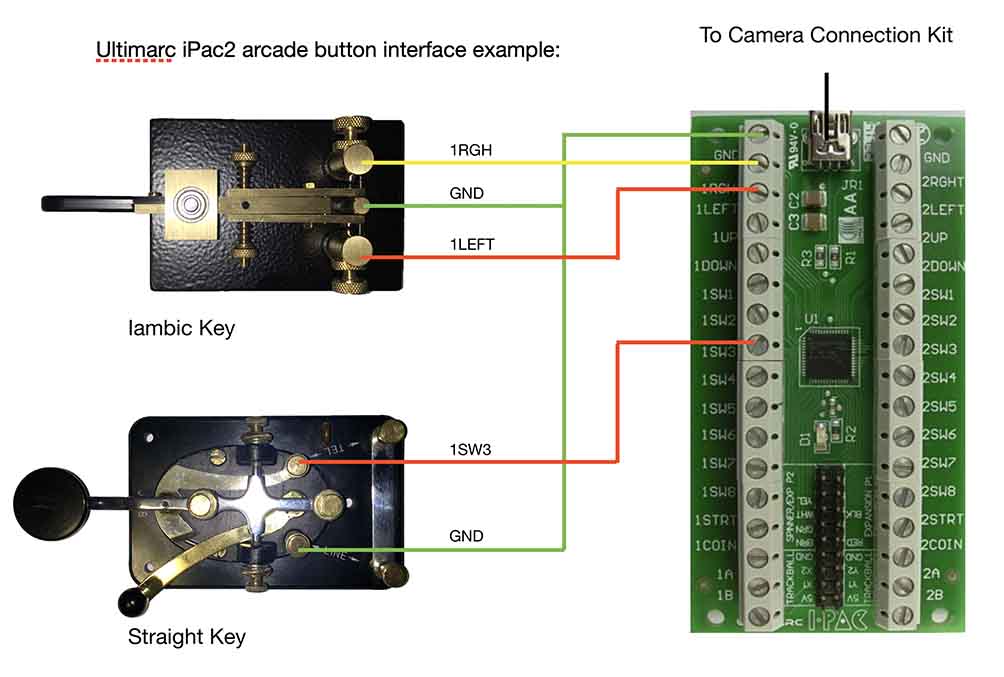 |
Here is an explanation on how to connect to your Morse Code key, using either a 2-wire or 3-wire interface, to the Morse-it Keyboard Hardware Interface. A Camera Connection Kit (on older devices) and an iPac2 are used. Check this great tutorial video from NexxuSix/KD9MED for more information. Here, the default Morse-it configuration is used :
|
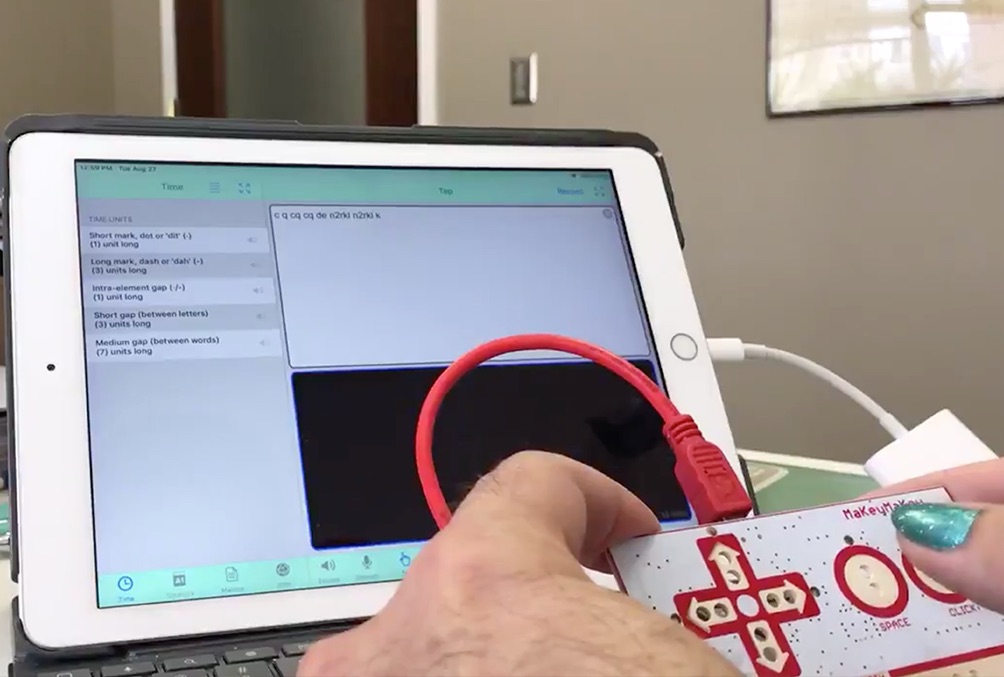 |
As showcased by N2RKL, a Makey Makey can also be used to connect an external hardware to Morse-it. On older devices, a Camera Connection Kit is used to connect the Makey Makey to the device. |
FAQ
- Troubleshoots:
- Q : My Morse key doesn't work. I use a keyboard adapter, like the VBand adapter. Can you help ?
-
First of all, if you don't hear your Morse key all the time, everywhere in the application, that's normal.
The Morse key is only active when the application is expecting a Morse input.
So basically, it is when you see the software Morse key displayed on the screen (and not dimmed).
For example- in the Settings screen, it won't work
- In the Tap screen, it will always work.
- In the Sending Trainer screen, it won't work until the Start button is pressed.
-
If the Morse key seems to be recognized, but you cannot really use it because it does not work as expected, then your key (and adapter) may have some contact bounces/chatters.
This is when the electronic connection is not fully on or off, but some multiple very short on/off connections are triggered in between the real on/off.
In the application, this is translated into unsolicited dots and dashes.
Although this could be solved by your adapter, In Morse-it, you can use the Software debouncing option (from the Hardware Interface Settings screen) to workaround this problem.
Try enabling this option, and perhaps changing the delay option, to see if it helps.
If your adapter acts as a keyboard, you can use the Keyboard event viewer to get an idea of the optimal delay to set.
-
If you think you have everything configured correctly and your Morse key doesn't seem to be recognized at all where it should be, try unplugging and reconnecting the USB (while in the Morse-it app), this will allow iOS to be "refreshed" about the fact that a "keyboard" is connected.
I say this because I noticed that sometimes when you enter the Morse-it app with the Morse key already connected, under some (unknown) conditions the Morse key may not work. -
If, when you use the key, a message is displayed on the screen pad, saying that a key is not handled, chances are that your setup is not OK.
If you want to check if your hardware setup is OK and see which key events are being sent, go to the Settings screen (under the Global section), select the Hardware Interface option. Then select Keyboard event viewer and touch the text area.
Press your hardware Morse key to see if the expected key events appear in the list.
If they appear correctly in the list (control left, and control right if you are using a VBand adapter with an iambic key), check that you have configured Morse-it correctly to handle such a hardware configuration:-
Configure the hardware interface to associate the key inputs with this type of key:
Go to the Settings screen, select Hardware Interface (in the Global section).
Then select Iambic / Memory (if this is your Morse key).
In the Keyboard section, set Enabled to enabled, Dot to Left Control, and Dash to Right Control. (if this is your configuration)
-
Make sure the Paddle Type (the one shown on the screen) is set to match the type of your real pad:
Go to the Settings screen and select the Key Type option (in the Global section).
Then select your Morse key (probably Iambic paddle mode A).
-
Configure the hardware interface to associate the key inputs with this type of key:
-
If none of this works, restarting your device may solve the problem.
Here is how to do it. -
Notes: In some recent ios versions, the hardware keyboard handling can be quite problematic.
Here are some of the issues, and the possible workarounds:-
On the iPhone, since the VBand adapter acts as a keyboard, the device no longer displays the on-screen keyboards. On the iPad, fortunately, it is possible to display them manually using an icon.
Workaround: either use an additional bluetooth keyboard or unplug the USB while entering text. -
When a text area has the focus (to edit the text) and the control keyboard keys are pressed twice (which can be done with the VBand adapter), voice dictation (microphone icon + speech icon) is activated for a short time.
Workaround: Try not to use the Morse key while entering text. -
The Morse key may not always be recognized by the application.
Workaround: while in the Morse-it application, try unplugging and reconnecting the USB.
-
On the iPhone, since the VBand adapter acts as a keyboard, the device no longer displays the on-screen keyboards. On the iPad, fortunately, it is possible to display them manually using an icon.
-
First of all, if you don't hear your Morse key all the time, everywhere in the application, that's normal.
- Q : I cannot get any sound out of the application. Any suggestions?
There are two volume levels that can be changed in Morse-it :
- The first one is hardware based : you can change it using the volume buttons of your phone, while having the Morse-it application opened.
It is also changeable/visible in the Device audio settings option of the Settings screen - The second one is more software based and can be changed using a dedicated slider in the settings screen of the Morse-it application (at the the top of this screen that contains a lot of configuration items)
Check the Device audio settings option of the Settings screen, you will find some usefull information and options that may help you fix the issue.
Here are some potential problems that could be checked :- Perhaps your iPhone is paired with a Bluetooth headset and the sound Is redirected to it
- Bring the control panel, while using Morse-it (with a swipe from the bottom of the screen) and check that sound is not redirected to something special.
You should also be able to view this information in the Device audio settings option of the Settings screen, by touching the icon next to the bolume slider - Try to plug some headphones, and see if you can hear any sound.
- This shouldn't have any effect in Morse-it, but check that the sound is not muted (using the hardware switch of the phone)
- Perhaps it is a hardware problem or an iOS problem, like something in the this discussion.
Finally, Some users reported to have their problem solved by :- Killing the app and restarting it again.
- Restarting the device.
- Going to the Settings app, selecting Privacy-->Microphone and disabling the Morse-it access. Then enabling it again.
- Performing a "Reset All Settings" on the iPhone settings.(Please note: this will mean loosing your personalised wallpaper or any other customisations you have made to the settings but your personal data and apps will be safe: Data such as your contacts list and media such as your songs and videos are not deleted.)
- The first one is hardware based : you can change it using the volume buttons of your phone, while having the Morse-it application opened.
- Q : I cannot buy the in-app upgrade. What is the problem ?
Your problem might be one of the following ones :
- Check your internet connection : an internet connection to Apple servers is necessary.
- You might be using a different iTunes account when trying to buy the in-app purchase, than the one you used to buy the app on the app store.
As a restriction from Apple, the iTunes accounts have to be the same. - Be sure that In-App Purchases are allowed in the Device Settings application : General -> Restrictions -> Allowed Content -> In-App Purchases
- If the problem persists, restarting your device might solve the issue
- Finally, the problem may be a temporary problem (problem accessing apple servers) that may be be solved automatically after a few hours.
- Q : My Morse key doesn't work. I use a keyboard adapter, like the VBand adapter. Can you help ?
- Standard features help:
- Q : The audio decoding is not working correclty. What is the problem?
Audio decoding is quite difficult, and it unfortunately does not always work perfectly.
That said, it should work quite well most of the times.
For instance Morse-it should be able to decode the following audio files without any problems:
http://www.arrl.org/code-practice-files
Here are some hints to improve the decoding :- Your device should be placed not too far from your audio source. The audio source should be as clear as possible. In case there is a lot of noise in the room, or in your audio source, then Morse-it will have difficulties to differentiate the audible noise from the audible Morse code. If you can, using an external microphone (like the one on the Apple headphones) and placing it near the audio source should improve the decoding (if there is some other audio in the room).
- By default, in the "Decode" screen, Morse-it will try to detect (and adapt to) the WPM of the audible Morse code. The currently detected WPM is displayed on the grid at the bottom. If you see that the displayed WPM does not seems correct at all after some time, you can touch the grid : this will reset the detection algorithm, and another detection will be performed.
- In case you already know the precise WPM of your audio source, you can disable the automatic adaptation in the "Settings" screen of Morse-it, under the "Decode" part : this will highly help the decoding process, since the app won't have to guess the duration of the sounds to detect.
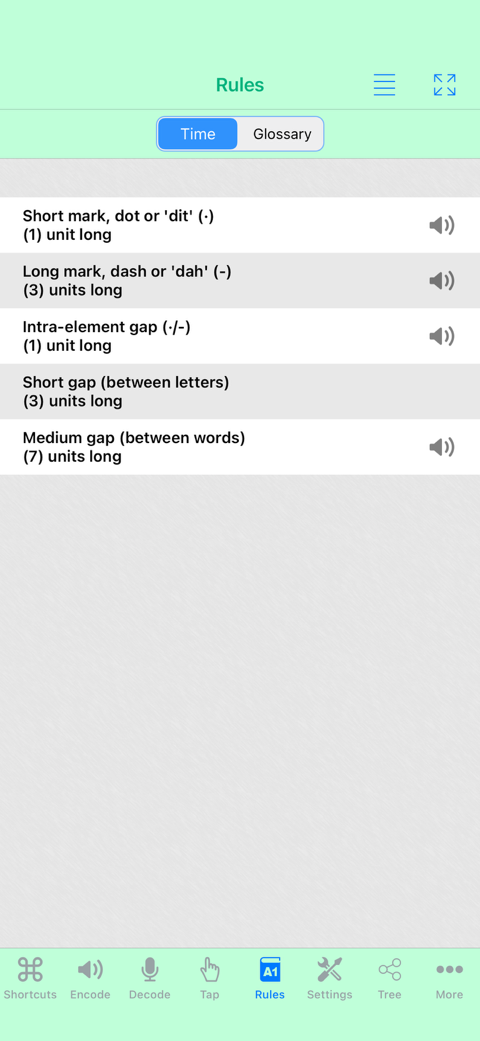
- Be aware that the time units (the relative duration of the dit/dots/silences) defined by the "Rules" screen are used by the decoding algorithm so if you have changed those values to something else than the default ones (by enabling Farnsworth, for instance), there are chances that this won't match the time units of the Morse code you are trying to decode (that will most probably be standard Morse code, with standard time units). The same remark goes for the glossary (alphabet) defined in the app which should match the one of the audible one.
- Q : How to create an audio file to use as a ringtone
Morse-it can create for you a ringtone file easily, however, installing this ringtone in your iPhone is a little bit more complex.
(there is, unfortunately, currently no way for a app -except the ones from Apple- to directly install a ringtone)
To create the ringtone file, Go to the Audio Files screen, choose the text and parameters you want, and preview the audio if needed. You then have 2 possibilities :
-
On iOS11 (or higher)
Install the GarageBand app from Apple. This app can create a ringtones from an audio file.
In Morse-it, export the audio file as a hq audio file, choosing the .aif file format.
Press the export button, and select the activity item (bottom part of the popup) named "Save to files". If that item does not appear, you have to select the "More" item to add it yourself to the list.
Select the location you want the file to be saved in, and select save. Open GarageBand and import the file (from the Files app location) as an audio loop in a project, and export the project as a ringtone.
(here is a tutorial about that, but you can find some other ones using google. -
On any (older) iOS version
Export the audio file as a ringtone, choosing the .m4r file format.
Press the export button, and send it to you as an email (you could also export it to Dropbox or something similar, if you have them installed on your device) : the goal is to get this file on your computer.
To install this ringtone file on your iPhone, you have to use iTunes on your computer. Add this .m4r file in iTunes, and sync (the Tones) with your iPhone.
There are several tutorials on the web that will explain how to install a ringtone.
You can check this link, for instance.
Just skip all the part before "Turn any song into an iPhone ringtone: Import the .m4r file into Tones" (since you already have the .m4r file)
Also note that as another constraint from Apple, a ringtone file cannot be longer that 30 seconds.
-
On iOS11 (or higher)
- Q : The audio decoding is not working correclty. What is the problem?
- Premium features help:
- Q : I can't find the Timing/Farnsworth setting. Where is it?
To enable Farnsworth timing, on iPhone, you have to go to Settings screen and then select the Farnsworth item under the the Global section.
-
You can then simply enable the option, and move the dedicated Farnsworth sliders.
-
Note: if needed, you can also, in the Rules/Time screen, press the top right options button to enter edit mode.
You will be able to change all the time units, by selecting them.
For Farnsworth timing, you can increase the Short and Medium gaps to the values you prefer (for instance multiplying them by 2).
Warning: This newly defined timing will be taken into account in all the other screens of Morse-it.
-
You can then simply enable the option, and move the dedicated Farnsworth sliders.
- Q : How can I use the Koch trainer
Here are some instructions regarding the Koch trainer :
First of all, here is a web page that will explain you the basics of the Koch method. http://hfradio.org/koch_1.html
The goal is to learn Morse code focusing on an increasing subset of characters.
In Morse-it, the left tab displays the heard characters (the result) and the right tab (the notes) can be used to write the heard characters.
There are 3 ways to use this screen, according to your taste :- Start the training, select the right tab (notes) and touch the big white area. This will bring you a keyboard allowing you to progressively enter the characters you hear.
At the end of the training, click on the compare button and the app will tell you, and visually highlight, how many errors you made.
To spot the errors, Morse-it compares all the characters, one after the other, of the two tabs : Result and Notes.
So basically, if 10 characters are emitted and if you also enters 10 characters but make an error for 2 characters, your score will be 80%.
- Start the training and watch the left tab. In your head memorize the heard characters and directly compare what you've just decoded with the result, while it is progressively displayed.
- Start the training, get a paper and a pencil and write the characters you hear. At the end of the training, look at the result and see by yourself how successful you were.
You then have to press the right arrow (located at the bottom).
This is a manual operation, so you can do it whenever you want (and bypass this conventional 90% success)
In the settings screen you can change some parameters of the method, in case you need something very specific.
You can also edit the dedicated macro file if you need to change or re-order the characters.
However, the default parameters should be enough (as they define the typical Koch method).
- Start the training, select the right tab (notes) and touch the big white area. This will bring you a keyboard allowing you to progressively enter the characters you hear.
- Q : During the Koch Trainer, I cannot type <bt> quickly enough. What can I do?
-
The quickest way to enter your prosign is to use the import button in the Koch Trainer screen (which was mainly added for that purpose).
This button is displayed once the training is started, on the left part of the toolbar (it is a square with an arrow pointing in it).
Press this icon, and the Glossary/Macros list will be presented to you.
Select <bt> either from the Glossary or from the Koch Training Items Macro list (which is probably better since the 3 main prosigns are next to each other).
(Note : you could also create your own list with the elements you want only)
Touch the prosign and it will be inserted in the text area.
Since this insert screen keeps your previous position in the list, then your prosigns will always be two clicks away.
-
Morse-it being highly configurable, there is also a more complex solution to the problem.
This solution would be to edit the Koch Trainer Items list (in the Macros screen) and to change "<bt>" to "=".
The trainer will then display "=" instead of "<bt>", and if you write "=" in the notes, then the comparison will match the two characters.
For the "<sk>" prosign, you could also replace it the same way by a simpler, unused character (like the "Ś" character which should be accessible by long pressing the "S" keyboard key)
But since this character does not exist in Morse code, you'll also have to edit the Glossary (in the Rules screen), to add the "Ś" character corresponding to the "...-.-" sequence.
(you'll have to move "Ś" to the bottom of the list, in order to make "<sk>" higher priority, which will allow the app to still use "<sk>" by default)
<ar> could be changed the same way to "Ā".
-
The quickest way to enter your prosign is to use the import button in the Koch Trainer screen (which was mainly added for that purpose).
- Q : I want to listen numeric code only (or specific letters) in trainer. How to do that?
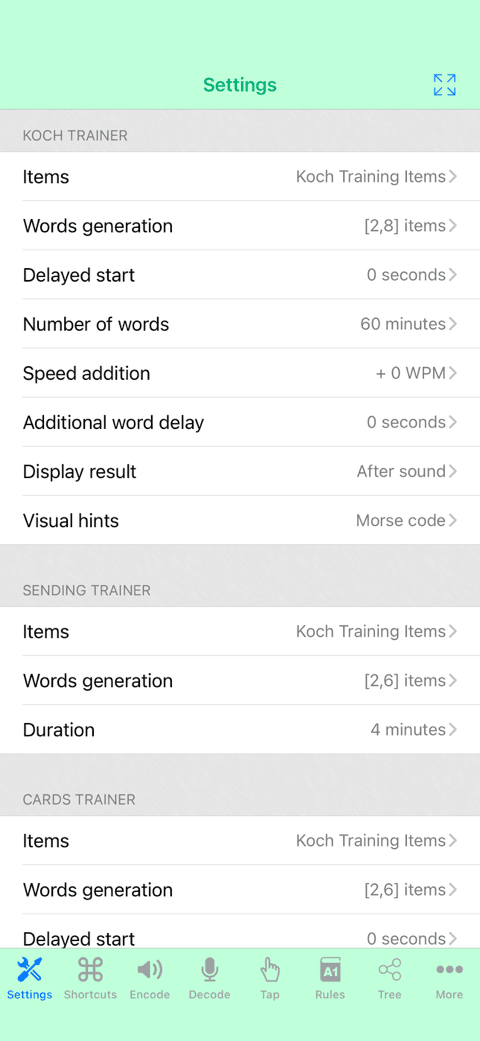
To configure the Koch Trainer screen, you have to go in the Settings screen.
Under the Koch Trainer section, you can change the items that will be used by the trainer.
Touch the items option, and select the numbers list.
This list only contains the numbers from 0 to 9, and will allow you to focus on the numbers only.
If you need more customization, see the next FAQ question.
- Q : Can I customize the trainers to play some specific words or letters ?
The Koch Trainer screen (but also the Sending Trainer screen, and the Quiz screen) can be fully customized to work with custom elements (letters or event words).
To change those elements, you can go to the Settings screen, under the Koch Trainer (or the Sending Trainer or the Quiz section).
You'll see an Items option, touch it to change the list of elements.
When you select the Items option, you'll see that there are some existing lists of items (like English common words, letters, numbers or Koch training items).
You can select one of those, but you can also create your own list if you want.
For that go to the Macros screen.
You'll see that there are some macros lists named English common words, letters, numbers or Koch training items.
Those are the lists that you could see in the list of possible items, when customizing.
To create your own, in this Macros screen:- Press the option button (the button with the 4 horizontal lines, on top of the screen), and select edit.
- Press the Add button and name your list the way you want.
- Press the Done button.
- Select your new list and enter edit mode using the top right button.
- Press Add button several times to add all your items (letters or even words)
- When finished, press the done button.
Note : There is also a Words generation option that is used to specify how many of those elements should be concatenated in order to create words.
This option is useful if the list of elements is composed of letters.
In case the list of elements are already words, then this option should be set to 1 ("at least with 1 item" and "up to 1 item").
Why? : By default the initial list is made of letters, so the Trainer has to build words as a first step (concatenate the elements without a space), before building the sentences.
This is why there is this Words generation setting.
- Q : Creating a list of Macros is not really easy on the device. Is there an alternative ?
Yes, you can do it from your computer as well, and then import the file in the app.
You might have noticed that when you press the (top right) options button, when a macro list is displayed, there is an option to export the list.
When you export a list of macros (like the default Quiz items), a .mitd file is created and can be sent to you by email for instance (airdrop and other ways can be used as well).
Also, In your mail app, if you click on a .mitd file, you can select the Morse-it app to open the .mitd file into the app (and then import it).
Once imported, you will see it in the list of macros.
You can edit a .mitd file on your computer, as it is just a renamed text file (formatted as a plist/xml content).
(You can look at the next FAQ question, to learn more about the .mitd file format).
SO :- export one of the lists, and send it to your computer. This list will be used as a template.
- rename the file to .txt, for easier edition, and double click on it.
- edit it as you like (don't forget to also edit the name)
- save the file and rename it to .mitd.
- Send it back to your phone, and import it in Morse-it
- Q : What is the file format of a .mitd file. How can I edit it ?
To edit a .mitd file (Morse-it data file) on your computer, rename it with a .txt extension.
This will allow you to edit it easily with any text editor.
Note: .mitd files are simply text files formatted as plist/xml content. The customised .mitd file extension allows devices to automatically associate (and open) the file with the Morse-it application.
Here is some information about specific keys of this plist content:
- The type key must be set to 2 for a macro file and to 1 for the main glossary file.
- The name key should be set to something unique (but the application will allow you to rename it if there are any conflicts).
- The filename key, if present, can be removed (it is used to identify pre-installed content).
- The items key contains the items in the macro/glossary.
-
Each item can have the following keys:
- The code key is the name/content of the item.
- The description key is an optional key if you want a description to be displayed below the item.
- The morse key is the Morse code of the item (with .- characters). This key is only used by glossary files (with type key = 1).
Here is a sample Macro file and Glossary file file, so you can see how they look like.
- Q : Where can I set the callsign (YOUR_NAME) variable used in the Macros or in the CWops Academy screen?
You can set this callsign variable in the Settings screen (by default located in the More tab)
In the Global section of this Settings screen, you'll find a Variables item.
Touch it, and you'll be able to edit those variables by touching them. You'll also be able to add some new ones, if needed.
- Q : I can't find the Timing/Farnsworth setting. Where is it?


History
v11.5
They are disabled by default.
- Tap : Audio announcements for recognized letters or words. This lets you know if what you have typed has been correctly decoded without having to look at the screen. For disabled users, it is now possible to tap Morse code to make the phone say the words.
- Koch Trainer : Audio announcements to hear the word being translated. This way you can practice copying by associating a sound with text without having to look at the screen. This works even when the application is in the background.
- Sending trainer : Audio announcements to hear the word to send, the success or failure result, and the letters or words actually sent. Useful to practice sending without having to look at the screen.
- Audio announcements can be configured (in the settings screen) to work with different voices and languages.
- Audio alternatives: Visual feedback can add a blinking area below the navigation bar during copy. This way you can use the whole application without any audio output.
- Audio alternatives: Haptic feedback can be triggered during each Morse code sound. Another way to use the whole application without any audio output.
- Hardware interface: Support for the Open Bracket and Close Bracket HID keys to support the TinyMIDI hardware (MIDI mode already works perfectly, but this enables keyboard mode as well).
- The Settings shortcut (in the Options menu) is also accessible from the 3 Trainers in the Work screen, the Tap screen, and the Decode screen. The audio, global, and user interface-specific settings are now accessible from these shortcuts.
- A new System Integration section has been added to the Settings screen to present the Widget and Shortcuts feature.
- Fixed an issue in quiz endless mode that could prevent the text entry from being automatically reset.
- Minor fixes and improvements.
v11.4.3
- Small fixes.
v11.4.2
- Fixed a potential text highlight offset problem in the Encode screen.
v11.4.1
- Fixed a potential crash in the Settings and Koch trainer screens.
v11.4
- Prosign fast text input: If you type a Prosign in a text area without explicitly adding the '<' and '>' signs, the application can automatically detect them and add the surrounding signs for you (automatically or with confirmation). For more information, see the Settings : Prosign detection option.
- New key types: Ultimatic paddle and Vibroplex bug. More information in the Settings : Key type option.
- CWOPS Academy : updated to the latest v4.2.8.1 (the characters to work with are now organized by categories).
- Text Filters : Ability to automatically replace some characters with other characters before converting text to Morse (useful when using imported text in the Encode, Work and News screens). See Settings : Text Filters option for more information.
- News/Work screens: Unknown characters not in the glossary are now removed from the text to work with.
- Text to Morse conversion improvements: improved recovery when the <> characters surround something other than a prosign.
- Added an import button in the Cards screen to import text from macros or the glossary.
- Various fixes and improvements.
v11.3
- New Social feature: News reader (where you can specify the RSS feed of your choice) that allows you to work directly in Morse code with the summary (or content, if any) of each article. It has a custom widget for your home screen that nicely displays the images and titles.
- In some screens, there is now direct access to the specific settings of the feature by pressing the options menu in the top right corner.
- Minor bug fixes and improvements.
v11.2
- Hardware Interface : Improved keyboard support that will fix some potential detection issues.
- Hardware Interface: A button is now displayed to explicitly use the hardware keyboard for Morse input if it is currently being used for something else.
- Hardware Interface : New MIDI hardware interface (USB or Bluetooth).
Using this interface instead of the keyboard will avoid the problems iOS can have with external keyboards.
Microcontrollers used by adapters that can act as a keyboard should be able to act as a MIDI device if reprogrammed. - Hardware Interface :When a keyboard key, a game controller button, or a MIDI note is received but not processed, a warning is displayed on the Morse pad to make it easier to understand what is happening.
- Hardware Interface : Fix to handle multiple game controllers at the same time (and not just the first one).
- Variables: random_macro_no_repeat macro added (similar to random_macro, but prevents repetitions of the same element as much as possible).
- Audio: New Device Audio Settings section showing system volume and the ability to force audio output to the built-in speaker.
- VoiceOver: VoiceOver-related fixes in the Cards game and Cards Trainer.
- Minor fixes and improvements.
v11.1
- Quiz: Ability to listen to the question and result again after completing a quiz (to better understand where mistakes were made, if any).
- Sending/Cards Trainer: Possibility to hide the success rate displayed while training (to avoid distractions).
- QSOBot: Fixed a problem where the bot would give an incorrect temperature (please, don't blame the poor little bot).
- Minor fixes and improvements.
v11.0.2
- Cards / Parrot : Fixed a problem where some characters (the ones that share the same Morse code with other characters) were not validated correctly.
v11.0.1
- Small fixes
v11.0
- 2 new actions in the Shortcuts application: Create Morse audio file from text and Create Morse image file from text.
- It is now possible to access to every screens of the app, while being in fullscreen mode : a back buton will be displayed on the left, when the tabbar at the bottom is not displayed.
- The WPM speed or the audio fade / frequency can be quickly previewed after a change.
- Fix for dash and dot display on iambic paddle not refreshing immediately when changing left/right handed option.
- Minor fixes and improvements.
- Cards trainer : New trainer that allows you to learn or practice copying and sending Morse code, one letter after the other, in an easy and fun way.
- Speed : It is now possible to set the Copy WPM speed and Send WPM speed independently. Farnsworth mode can also be set independently.
- Koch Trainer : It is now possible to check your stats while the training is in progress.
- Audio File : Dedicated Farnsworth option for audio file generation.
- Cards game : 40 random cards where you have to copy or send words. Make no mistakes, and the difficulty will increase.
- Chat : When viewing a user message in fullscreen, it is now possible to copy the user name (by using the menu or by long pressing on the name).
v10.2
- New actions dedicated to Morse-it are available in the shortcut apps, for example it is possible to convert some text to Morse code and vice versa, or to work with some specific text in the app.
- These actions are also available with Siri, so you can say something like "Encode some text with Morse-it", "Encode SOS with Morse-it", "Show the decode screen of Morse-it".
- Social : Lower price for the Social Club subscription. To make this possible, the radio feature has been removed. It is still possible to use the chat and forum features, which can be used for almost the same purpose.
- Social : New Annual subscription, at a more attractive global price. (if you want to migrate to this subscription from the monthly one, open the Settings app, tap your name, tap Subscriptions).
- Social : New Game "Wordle" : Guess the 5-letter word by sending valid words with shared letters. Be smart and make no mistakes.
- Social : Possibility to view the game analysis for all types of games (not only the Parrot one)
- Social : In the Games list, a small check mark indicates whether or not today's game has been played.
- Social : In Chat/Forum, Auto-Correction when writing messages now uses the system default value.
- Minor fixes and improvements.
v10.1
- Social : The first month of the Morse-it Social Club is currently about 50% off, so this is a good time to try out all the features of the app! The main price has also been reduced in most countries.
- Social / Parrot Game : Ability to view the game analysis after the game is over.
- Social / Guess the Animal : Fix for a possible problem of the game displaying an incorrect number of letters.
- Learning / Work : New Work screen allowing to quickly enter (or generate) some specific text and use this text with the Koch trainer, the Sending trainer, or the audio player (which can be used when the application is in the background).
- Learning / Koch : It is now possible to set an additional delay between words. This can give you time to read and analyze the word before hearing it, or give you time to write the word before the next one.
- Learning / Macros : In the Settings screen, it is possible to change the main action to be performed when a macro is selected (playback/encode/edit/work/display/...). Long press on a macro to select a different option if necessary.
- Variables : The variable value is now processed in case it contains some dynamic content.
- Variables : When creating a variable with the [variable_start ...] keyword, it is now possible to make the variable dynamic so that it can update the value at each display.
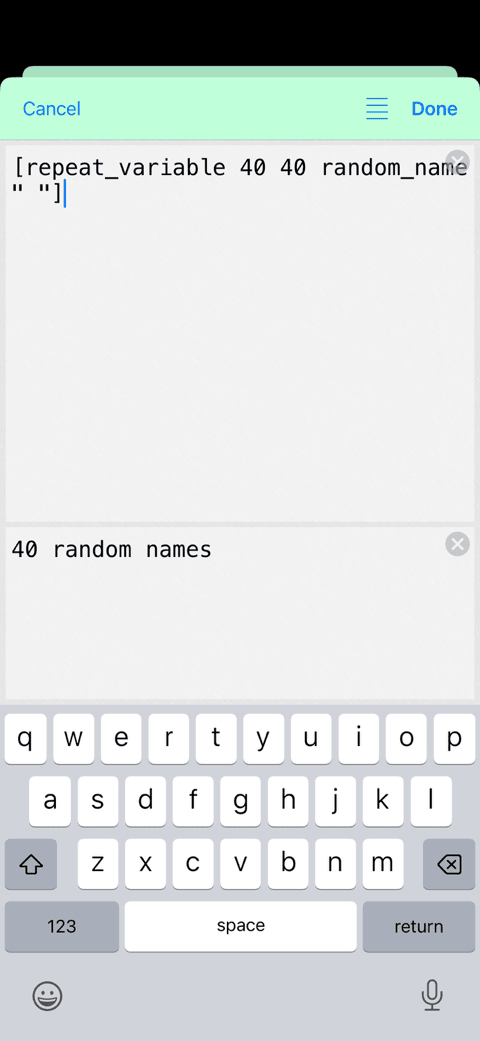
- Variables : Ability to repeat a variable a given number of times, using the [repeat_variable ...] keyword.
- Glossary, Macros, Web : long press on an item to bring a context menu (also accessible with voiceover actions).
- Wallpaper : New presets for Device (image size) and Device margins (content margins). They will automatically change according to your device orientation.
- Minor fixes and improvements.
v10.0.5
- Fix for a problem where autocorrect did not deactivate in certain text areas (mainly with the notes from Koch trainer).
v10.0.4
- Fix for a possible crash on iOS17 when using the Sending Trainer.
v10.0.3
- Fix for audio file quality issue when exporting to .m4a or .m4r files (on iOS16).
v10.0.2
- Small fixes
v10.0.1
- Hardware interface: A keyboard event viewer is available to check if your keyboard is recognized correctly.
- Hardware interface: A new debouncing option can be used to filter unwanted keyboard events (from contact bounces/chatters).
- Various fixes
v10.0
Later, some learning features were added for users who wanted to learn Morse code more efficiently.
Learning features unlocked some different learning methods (Koch, Farnsworth) and tools (Trainers, CWOps Academy, Quiz, Macros).
Today, with this new version 10.0, not only the basic and learning features get additional content, but a new group of (optional) social features is introduced, for those who want to use and practice their hardly acquired skills.
Select one of the new social features in the app to get a presentation of all the new exciting features you can access.
Here is a complete list of all the changes in this 10.0 release:
- This and some recent release notes can now be viewed by touching the version number in the About screen (or by selecting the Show History menu button).
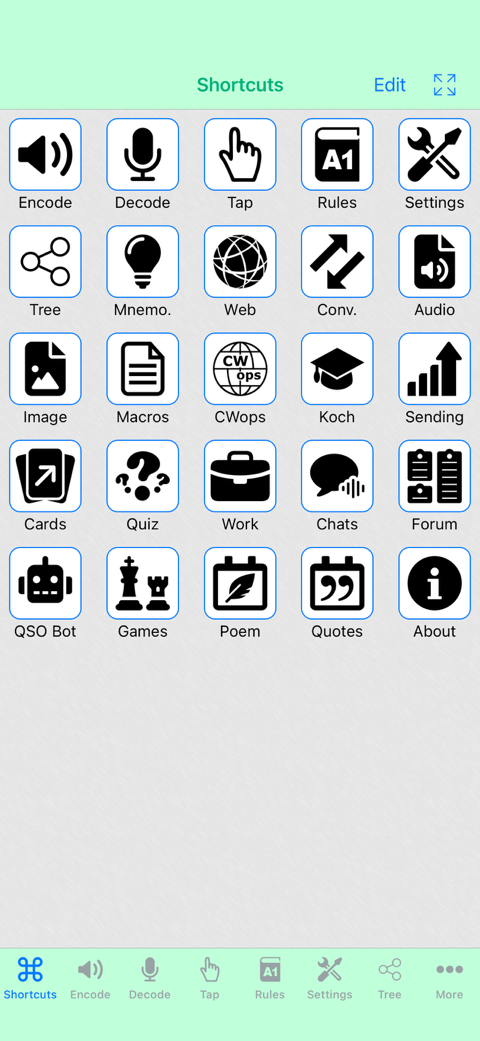
- Shortcuts screen to quickly switch to another screen (it is currently displayed as the first screen in the tab. This can be changed in Settings > User Interface > Rearrange screen order).
- Wallpaper screen, which allows you to create beautiful (and cryptic to the novice) wallpaper images that display your favorite quotes in Morse code.
- Today Widget: Add the current day to your home screen, displayed in Morse code with configurable colors.
- Prosign encoding/decoding is no longer part of the learning features and is available to all users.
- Decode : Option to increase the size of the information area (speed/frequency) in the Decode screen.
- Premium: Ability to add some noise to the audio signal.
- Premium / Koch Trainer : Possibility to display the current letter (without Morse code) or the current word in the visual hints area of the Koch screen.
- Premium / Koch Trainer : If the trainer is stopped manually while a word is being transmitted, this incomplete word is no longer taken into account when calculating the results.
- Premium / CWOps Academy : Pause/Resume is now possible.
- Premium / CWOps Academy : Background audio is now enabled when the segments are chained.
- Creation of the Morse-it Social Club: A new set of features that allows users to interact with each other, exchange messages and more. Get some Morse code related fun every day. A good reason to use your great skills!
- Social : Messaging screen that allows you to send and receive Morse code or text messages with some private groups of friends. Read and reply to messages when you want, at your convenience.
- Social : Forums screen that allows you to discuss with other users on different topics. Either with Morse code or text messages. A nice way to share with the community and find new contacts.
- Social : Radio screen for real-time Morse code public conversations with an unlimited number of connected users, or private ones only with your friends.
- Social : QSO Bot screen to practice your QSO conversations with a robot, always there for you when you need to talk to someone :)
- Social : Poem of the day. A new poem to listen to every day. A dedicated home screen widget is provided and can be added, showing you the new title and author, and reminding you to decode the new poem. Possibility to practice copying and sending each poem.
- Social: Quotes of the day. Listen to 10 new quotes every day. A special home screen widget is also provided. You can also use it to practice copying and sending.
- Social : Games screen so you can play fun and short games every day. Possibility to compare your scores with other players if you want. 3 different games currently available (Memory, Parrot and Find the animal)
- Variables: Addition of the following random variables : name/name_man/name_woman/location/random_0_Z/random_0_z
- VoiceOver accessibility improvements (escape gesture support leading to shortcut screen, magic tap to pause/resume, various announcements and focus changes greatly improve app usage).
- Keyboard recognition improvements (mainly for use on compatible computers).
- When necessary, the Menlo character font is used to increase the contrast between some characters, such as the letter O and the number 0. This option can be changed in the Settings/Appearance screen.
- Minor fixes and improvements.
v9.3
- Possibility to disable the visual feedback (flashes) on the Paddle (in Settings> Global> Key type).
- Hardware interface : new keyboard keys supported : Alt, Shift, Control (both left and right), F1, F2...
v9.2.2
- VoiceOver related fixes
v9.2.1
- Support for iPhone 12 zoom mode.
v9.2
- Background Audio: The sound emitted by the application during long audio sessions (such as with the Koch training screen or the Encode screen) will continue when the application is no longer visible (screen locked or with another application opened). This option can be disabled in the Settings/Audio/Background audio screen.
- Farnsworth: The formula to compute the Farnsworth WPM value is now the one recommended by arrl.org. Go to the Settings/Global/Farnsworth screen if you want to use the previous formula.
- Audio files: The delay between the words was slightly too long. Encoding unknown characters could create some problems.
- Quiz: Lower volume for the Quiz success/failure sounds.
v9.1
- For iOS 13.4 (and higher) devices, the keyboard hardware interface is not experimental anymore. Multiple keys pressed at the same time are now correclty detected (useful for iambic paddle).
- Option to have Haptic feedback on compatible devices, when typing Morse code.
- Fixed a visibility problem of the Morse pattern displayed over the paddles (and the color can now be customised in the Themes).
v9.0.1
- Fix for a possible problem preventing the display of the content of the rules screen.
v9.0
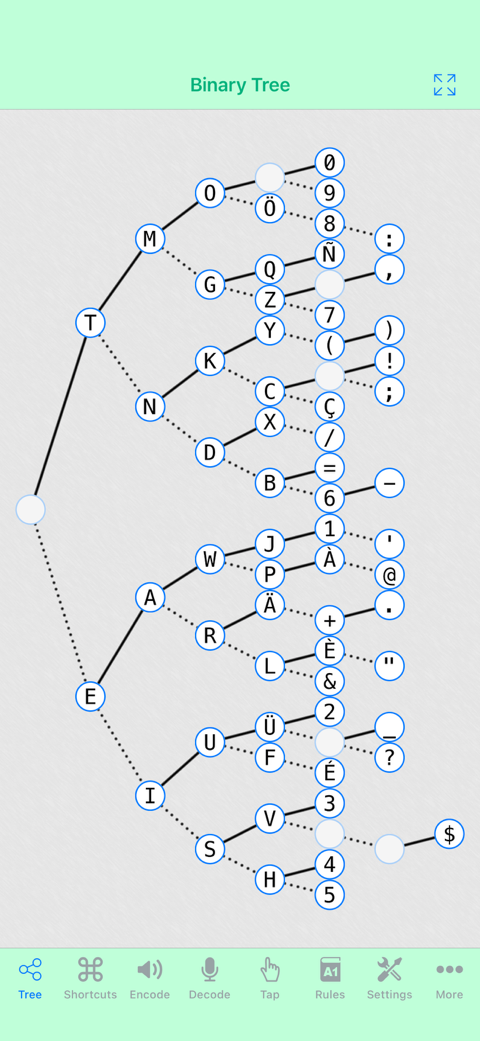
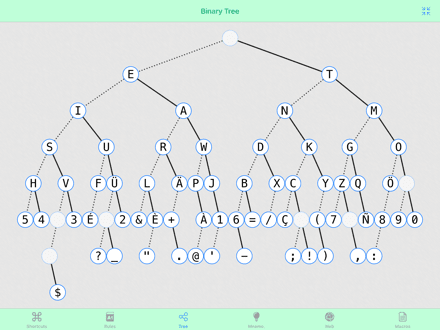
- New Binary Tree screen allowing to visualize the Morse code in a graphical way, and to interact with it.
- New Sending Trainer screen (Premium feature) to practice sending, the same way you practice copying using the Koch Trainer. Handles progression and customization as well.
- Dark theme support. In Settings, the Look section is moved to the UserInterface section (Apparence item).
- Possibility to resize the 2 screens (on big screens like on the iPad), by dragging the separator line left and right.
- Variables with parameters allowing to create custom complex randomized texts (premium users can use them in macros to be used in different parts of the app).
- New variable "random_callsign" to create a randomized callsign.
- Macros are now in a dedicated screen. Time/Glossary are merged in the Rules screen. Mnemo screen is displayed on left (in 2 screens mode)
- Long Press on a macro to access options like quick duplicate or preview/copy (with variables replaced).
- Improved audio generation to handle higher speeds and lower latency.
- Possibility to disable bluetooth audio output or to choose between a low latency output or a high quality output.
- small fixes and improvements.
v8.2.1
- Fix to prevent a crash when exiting the send segment screen of the CWops Academy feature.
v8.2
- Hardware Interface: Keyboard / gamecontroller / icade controller support and configuration (allowing to potentially connect a real Morse Key).
- New version popup displaying the changes since last update, if any.
- Option to hide the Morse code displayed on the Pads and in the Encode screen.
- Option to slightly reduce the delay before automatically inserting a letter or word separated, to improve recognition (setting in the Key Type selection screen)
- Fix to prevents a possible torch lag with high speed Morse code.
- Tabbar change animations (optional feature).
- Settings: Global reorganization, mainly to avoid defining the same thing in different places (like speed/key type/gestures). You might have to update the Speed/Key type once, after this update.
- Settings: Possibility to change all the configuration sliders precisely by touching their value.
- Settings: Possibility to precisely enter a color using a RGB value.
- Premium: Improved Farsnworth precision (which can now be defined in WPM in the Settings screen, and not on the Rules Screen anymore).
- Premium: More options and information to share custom Macro Lists.
- Premium: Macros can be duplicated.
- Premium: CWOps Items macro list added (this can be useful in the Koch or the Quiz screen).
- Smaller fixes and improvements.
v8.1
- New : Option for an endless mode in the Quizz screen.
- New : Option to remove the blinking in the Quizz screen.
- Fix : Fix for a potential added delay between words and letters (the farnsworth parameter could be incorrectly set to +100%).
- Fix : Fix for a potential audio lag while using the system keyboard (blocking the user interface).
- Fix : Fix for an incorrect audio file preview (with triangle and Sawtooth tones).
- Fix : Small fixes.
v8.0.5
- Fix : Fix for a potential crash in the Rules screen when VoiceOver is activated.
v8.0.4
- New : More reactive Morse Manipulator:
- Deactivation of interactive pop gestures (from left) when using the Morse Manipulator.
- Option to defer system gestures of the edges of the screen when the Morse manipulator is displayed (deactivated by default).
- New : Option to display a confirmation window before deletion of text, if the delete button at the top right is pressed (activated by default).
v8.0.3
- Fix : Small corrections.
v8.0.2
- New : Added a delay when chaining segments in CWOps Academy.
- New : Added information to illustrate the impact of Farnsworth modification on WPM values.
- New : The Farnsworth timing can be twice as slow as before.
- Fix : Small corrections.
v8.0.1
- Fix : Prevents a potential crash during a phone call.
- Fix : Prevents a potential crash on the CWOps Academy screen after sending a segment.
v8.0
. -. .--- --- -.-- -.-.--
- Improved sound engine.
- Fix for timing issues with some Bluetooth devices.
- Possibility to change the audio fade-in and fade-out of the heard Morse code.
- iPhone X adaptations.
- Improved keyboard handling when using Split View on iPad Pro.
- Tab bar buttons color customization (Premium).
- Fix for keyboard hidden in Quiz mode (Premium).
- Koch training possible duration increased to 60 minutes (Premium).
- Small fixes & improvements.
v7.0.2
- New : Small update to include the second edition of the CWops Academy.
v7.0.1
- Fix : Fix for bluetooth headsets not recognised anymore in iOS 10.
- Fix : Improved permissions handling (for microphone, camera not needed anymore).
- New : Option to hide the flashing area of the Encode screen.
v7.0
- Layout: Dual screen support (previously iPad Only) on iPhone6+.
- Layout: The tab bar menu (at the bottom of the screen) can contain more tabs than before.
- Layout: Possibility to make a screen fullscreen (by removing the status bar and hiding the bottom tab bar).
- Layout: Landscape orientation supported.
- Layout: iPad Pro supported.
- Layout: Sharper images on iPhone6+.
- Layout: Using « voiceover », the layout automatically switches to the simplest possible one (single screen layout).
- New: Option to disable the current letter highlighting in the Encode screen (a cursor will be displayed instead).
- New: In Koch Trainer, it is now possible to define a start speed and a stop speed. The speed will be progressively increased during the session.
- New: For premium users, a quick way to apply the Farnsworth method, using a slider in the Rules/Time screen. The Farnsworth method can be helpful to learn Morse Code by increasing the delays between the letters and the words.
- Some minor fixes and improvements.
v6.2
- Global: Fixes some iOS9 potential problems.
- Global: Possibility to open a web page in Safari
- Premium: Possibility to change the colors of the Paddles and the text areas.
v6.1
- Global: iOS8 related fixes (mainly some audio problems when resuming from background).
- Global: iPhone 6 and iPhone6 plus screen support.
v6.0.1
- Tap: Fix: the manually changed text in the tap screen was not saved once some new morse code was entered.
- Global: Fix: on iPad, the inserted text (when the keyboard was down) was not always inserted at the end of the text.
- Global: Fix: remove the insert button associated to some ios keyboards on iPad (The glossary on the left should be used for that purpose).
- Global: Fix: slightly improved voiceover experience.
v6.0
- Audio Files: New screen allowing to create audio file from a given text. Those files can be fully customized (wpm,frequency,tones,fade,volume,file type).
- Audio Files: An audio file can also be generated from dynamic tapping, using the record button in the Tap screen.
- Decode: Improved audio decoding (moreover, the estimated frequency and volume are displayed).
- Global: Allows to select the microphone as Morse pad input in the different screens using a pad (Tap, Quiz, CWops Academy).
- Global: The type of the tone can be changed (sine, triangle, sawtooth, square).
- Global: Possibility to create some user defined variables to be used in different parts of the applications. Those variables can be dynamic like the current month or the current year.
- Global: New web screen replacing the Wikipedia screen. Now it is possible to add and consult personal and Morse code related web pages (including Wikipedia, like before), without leaving Morse-it.
- Global: Allows characters (and Macros) insertion in Audio File, Convert, Decode and Tap screens.
- Global: Various bug fixes and improvements.
- Premium: New CWops Academy screen: an effective way to learn Morse code, practicing different copying and sending sessions. The progress is tracked so you can see your evolution.
- Premium: Line breaks can be added in the macros. Improved multiple line handling in list.
- Premium: New default macro pack demonstrating some uses of the new Variables feature. This version of Morse-it is powered by Icom, a world leader in the amateur radio market.
v5.0
- Global: Adaptation to the iOS7 look (while keeping the previous look for devices with an older iOS version).
- Global: Upside down orientation supported on iOS7 iPhone devices allowing to change the direction of your microphone/speakers.
- Global: It is now possible to change the text size of the different text areas of the application.
- Global: Bluetooth headset support for microphone and speakers (the sound unit can be selected using the iOS control center, while using Morse-it).
- Premium: Improved look customization for iOS7 users.
- Premium: Addition of a macro list containing all the English common words. This list can be handy using the Trainer or the Quiz.
- Decode: It is now possible to set the initial value of the decoding speed (i.e: 25 WPM).
- Decode: Is is now possible to disable automatic adjustment of the decoding speed, which can be annoying when the WPM speed is fixed and known from the beginning.
- Decode: The decoded text is now persisted between application launches.
- Tap: The manually edited text (using the device keyboard) is now kept when the Morse pad is used after edition.
v4.2
- Global: iPhone5 screen support.
- Global: Retina support on iPad.
- Global: On iOS6, texts in Tap, Convert and Decode screens can also be exported to Facebook and twitter.
- Global: Display the used (or detected) WPM speed in the Tap, Quiz and Decode screens.
- Global: Improved handling of bluetooth text keyboards and iPad split keyboard.
- Global: Correctly recover audio (for recordings and emission) after an external event, like a phone call.
- Global: Various bug fixes and improvements.
- Tap: When Gestures are enabled for a paddle in settings, you can perform a left swipe on the text area to delete the last character and perform a right swipe to add a newline character.
- Premium - Trainer: Improved comparison of the result with the notes, with an associated visual highlighting of the mistakes.
- Premium - Trainer: New visual hint that can display both the Morse code and the text of the current character.
- Premium - Trainer: The visual hints can also be changed in the settings screen.
- Premium - Trainer: In settings, it is now possible to choose if the result will be displayed after the sound is played, or before the sound is played.
- Premium - Quiz: The correct answer is now displayed when an error is done.
- Premium - Quiz: The validation sound for the Quiz is now correctly played (according to the "Result sound" settings value).
- Accessibility: For iOS5 devices and higher, set the keypad buttons to accessibility elements allowing a direct Interaction with VoiceOver.
- Accessibility: Improved way to increase/decrease the sliders values in the settings screen with VoiceOver.
v4.1
- Global: German translation (many thanks to Christian and Jens for their precious help).
- Decode: Fixes an audio recorder problem on iPod 3 (thanks to Dave for his help).
- Premium: The Morse alphabet and the macros (used for memo, training, quiz) can be imported/exported for backup, sharing and modification on a computer.
v4.0.1
- Global: Fixes a problem on iPhone preventing from entering the 'to' field of an email.
v4.0
- Convert: New convert screen. This screen allows Morse to text and text to Morse conversion. Perfect to encode/decode/email/SMS Morse code with your friends.
- Tap: Optional quick gestures on Morse paddle: 3 fingers tap to delete last character. 4 fingers tap to delete all the text.
- Tap: Remove the not standard "(" ")" characters around morse code in Tap screen, when the 'Show morse code' option is activated.
- Tap: Morse characters (.,-,/, ) that are used in the Tap (and Convert) screens can be configured.
- Global: Flash Light support for devices supporting this feature (option in settings: the flash light can be used when typing or encoding morse code).
- Global: iPad adaptations. This application is now universal binary and can be used on iPhone, IPod and iPad.
- Global: Retina display enhancements.
- Global: VoiceOver accessibility improvements.
- Global: In-App SMS added (instead of using the external app) for devices supporting the feature (since iOS 4.0).
- Global: Text case automatic conversion option for the generated text (as defined in glossary, uppercases, lowercases).
- Global: Restructured Paddle type selection in Config screen (bottom tab bar visible, paddle types description).
- Global: New default theme.
- Global: Add a restore button in the in-app purchase screen, in case you have already purchased it.
- Global: Small bug fixes and improvements.
- Premium: New Quiz screen to test your skills. Highly configurable and different modes available (type the corresponding text, type the corresponding code, select the correct text, select the correct code, random quiz).
- Premium: New Koch trainer screen to learn Morse code, one letter after the other, thanks to this easy and configurable method.
v3.0.1
- Global: Fixing the sound problem on some iPod Touches.
- Global: Improved Headphones handling.
v3.0
- Wikipedia: New Wikipedia screen giving you access, in the application, to the web content of the Morse Code Wikipedia page.
- Mnemonic: New Visual Mnemonic screen, allowing to visualize and easily retain the Morse code alphabet.
- Tap: Text can be edited and exported to the clipboard, the SMS app and an In-app email.
- Decode: Text can be edited and exported to the clipboard, the SMS app and an In-app email.
- Decode: Click on the Decoding grid to reinitialize the automatic decoding algorithm.
- Encode: allow insertion of characters.
- Glossary: Units timing can be heard.
- Glossary: Nicer and restructured Alphabet screen (renamed Glossary)
- Glossary: Audio can be stopped if the selected item is selected again.
- Glossary: ≈ and ¡ characters added.
- Glossary: Accentuated characters capitalized in Glossary list.
- Global: Allows iPod Playback in the Morse-it App: Thanks to this feature, you can try to decode your own audio files.
- Global: Keeps playing/decoding when the screen is locked (to preserve battery life).
- Global: Avoid automatic screen lock from the device option in settings.
- Global: Allow screen reordering in the bottom navigation bar.
- Global: the not smooth tone is more reactive.
- Global: No audible clicks for keyboard.
- Global: More complete About screen that displays some web content without leaving the application.
- !! Exclusive !!: Premium features available as In-App purchases.
Prosigns, Macros, Dictionaries: abbreviations, QSOs, mnemonics, Timing (farnsworth) and Morse alphabet/prosigns personalization, look customization ... and more.
v2.1
- Tap: New key input types: Memory Paddle, Iambic Paddle (A and B). Left and right handed modes supported.
- Global: Enhanced audio smooth tone quality (Many thanks to Brent for his precious help).
- Global: Bigger Delete area for delete Buttons (all the top right screen area is used).
- Global: New icons in tab bar.
- Global: Adaptations to firmware 3.0.
v2.0
- Decode: New feature allowing to decode, in real time, the Morse code recorded from the microphone (if available) into Text.
Initial Morse code emission might be used for automatic calibration.
(The WPM, sound type and volume are automatically adjusted: they can change during the decoding process). - Tap: (was "Morse ->Text") A new automatic speed is available in settings (you can use this option if you don't want to specify the WPM).
Recognition will be adjusted automatically (allowing some WPM changes during time). - Tap: Text is not deleted anymore when the screen is changed.
- Encode: (was "Text -> Morse") Full screen can be toggled touching the flashing area.
2 new setting are available allowing to customize this new behavior. - Encode: Emission can be paused even during a mark.
- Encode: Avoid crash when translating an empty text.
- Global: Delete buttons added for each text boxes allowing to delete all the text.
- Global: Reorganization of the different screens: reorder, new icons, new labels.
- Global: UI improvements (more rounded corner, quicker list display,...).
- Alphabet: Changed the verbiage under the heading "Time Units" from "Intra-character gap" to "Intra-element gap".
v1.3
- Audio: Adaptation to firmware 2.2 (audio is now correctly activated when the Settings screen is left).
v1.2
- Global: The audio tones are ramped up and down to avoid the annoying 'pop' sounds.
- Morse->Text: Timing fix: The inter-letter and inter-word spacing were slightly too high.
- Settings: Another kind of sound can be used instead of the smooth one (the one that was used in v1.0).
v1.1
- Global: Improvements for quicker and more reactive morse encoding/decoding.
- Global: Improved audio Tones (smoother sinewave).
- Global: Nicer UI with rounded corners.
- Text->Morse: Not-Fullscreen mode displaying the decoding steps for every letter.
- Text->Morse: Configurable Color for fullscreen morse.
- Morse->Text: Novice mode, allowing to tap dots and dashed separately.
- Morse->Text: Currently tapped morse code displayed.
- Morse->Text: improved automatic scroll of the textbox.
- Settings: Bigger sliders displaying the selected values (%, Hz, WPM)
Availability
Morse-It can be purchased on the App Store
Privacy & Terms
Click here to see our Terms of Service and Privacy Policy page.
Help
For more information or support, please contact .
To get some fresh news regarding our work : here is our twitter PacoLabs.